
Useful Scenarios
The following scenarios are examples of the day to day use of appointments by reception staff and how the task is completed within the Appointments App.
Scenario 1
 to Scenario 2
Your patient rings the surgery he cant remember when his appointment with the nurse is:
- From the Day or Calendar View start typing the patients name anywhere and a search bar appears.
- Enter the patients name (missing or bad snippet)and click search
 .
. - Click on the patient from the search results list - the Patient View opens for your selected patient.
- The Patient View displays all Future Appointments for the patient.
- Return to the Day View by clicking on the back arrow
 to the left of Overview.
Scenario 3
Your patient arrives at the surgery for their appointment but cant remember who they are seeing:
- From the Day or Calendar View start typing the patients name anywhere and a search bar appears.
- Enter the patients name (missing or bad snippet) and click search .
- Click on the patient from the search results list - the Patient View opens for your selected patient.
- The Patient View displays all Future Appointments for the patient.
- Right click on the appointment and choose change status
 from the toolbar.
 - Select Arrived
 from the options displayed - the status updates without having to return to the Day View.
 - Return to the Day View by clicking on the back arrow .
Scenario 4
Your patient needs to cancel and reschedule their appointment:
- From the Day or Calendar View start typing the patients name anywhere and a search bar appears.
- Enter the patients name (missing or bad snippet) and click search .
- Click on the patient from the search results list - the Patient View opens for your selected patient.
- The Patient View displays all Future Appointments for the patient.
- Right click on the appointment and choose Cancel appointment
 .
. - Select the cancellation reason, and click Save
 .
. - Click
 next to Appointments - the patient is auto selected and you are taken back to Day View.
 - Find a suitable appointment and click into it. The auto selected patient is added to the appointment and the booking form opens to enable the adding of appointment comments and or patient related notes.
- Click Save
 .
.
Scenario 5
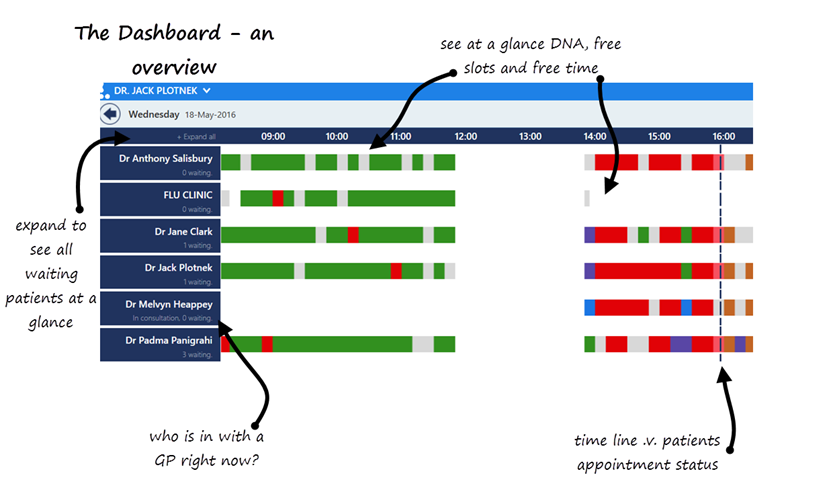
Dr Jones has had to deal with an emergency patient, so Anne the Practice Manager needs to know what patients are waiting to see Dr Jones and what GP's are currently free to assist with Dr Jones' patients.
- Click on the Dashboard
 at the top right of the Day View.
 - Click the expand all option at the top of the clinician list on the left hand side - scroll down to see who is waiting to see Dr Jones.
Scenario 6
Anne the Practice Manager needs to know how many free bookable slots Dr Smith has over the next 5 days to decide if further appointments are required
- From the Day View click the Filter
 .
. - Select Dr Smith and click Run
 .
. - The Day View now only shows Dr Smith - right click the arrow
 to the right of the date at the top of the screen.
Scenario 7
Your patient comes out from seeing the GP and needs a further appointment in 4 weeks time. to save having to search for the patient again:
- From Day View, right click on the patients current appointment and click Copy
 .
. - Click on
 Calendar View .
 - Right click on the right arrow and select the week you want to navigate to.
- Right click on the preferred slot - choose View Clipboard
 .
. - From the clipboard click on your patient in the Copied section (note the option to exclude comments if you do not want them copied across).
- The appointment booking is confirmed by a pop up.

