Signing Prescriptions - Prescribers
To digitally sign a prescription after it has been issued:
- From Consultation Manager, select the patient in the usual way.
- Select Therapy and add or issue the therapy as usual,
Remember - When selecting a drug,  indicates a drug is available for electronic prescribing,
  indicates a drug is not available for electronic prescribing.
indicates a drug is available for electronic prescribing, indicates a drug is not available for electronic prescribing.- Press F9 on your keyboard and Prescription Manager displays. Check the details.
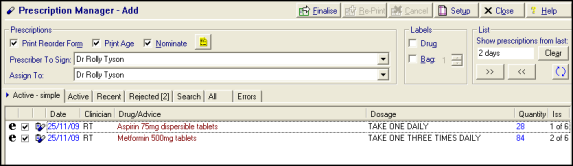
- It is advised that you also check the type of prescription that has been generated:
 - Electronic - Signed electronic message, the message is the legal entity.
 - Electronic +Token - If the patient requires paper or Repeat Dispensed items, the message is the legal entity.
 - Dual - A single EPS message and dual signed script/token, the paper is the legal entity.
 - Paper - Signed script only, for example, a FP10, the paper is the legal entity.
- Select Finalise.
-
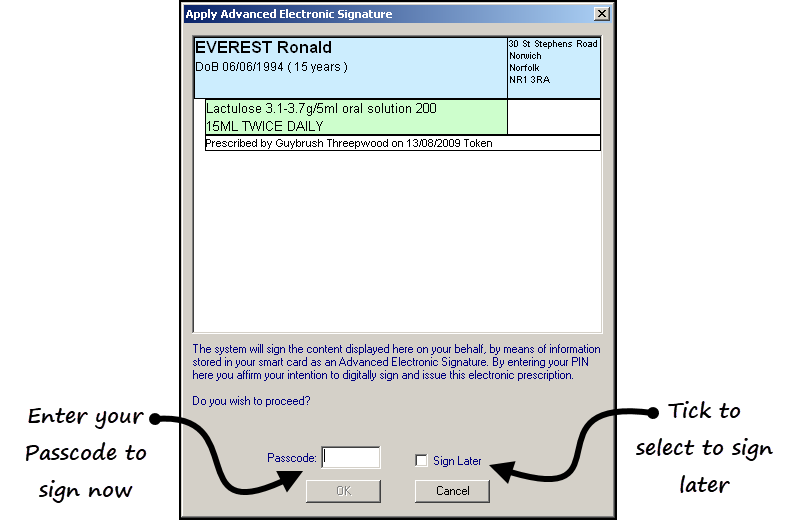
Note – Only prescribers are able to electronically sign prescriptions. Admin staff can issue and finalise prescriptions but these are forwarded to the allocated Prescriber To Sign and/or Assigned To clinician.The Apply Advanced Electronic Signature screen displays:
- Select to either:
Sign Now - Review the patient and drug details, then enter your Smartcard Passcode to sign the prescription, or
- Sign Later - Tick Sign Later and select OK. This adds the prescription to the All Prescriptions screen ready for you to review and sign your prescriptions in bulk at a later time.
- Select OKto send the Spine.

