
|
|
|
|
|


Running the Initial Upload
Points to note for all practices before running the Initial Upload:
- Your Smartcard is required to run the Initial Upload, you can log out of Vision and remove your Smartcard if you wish, but the automatic 10 hour shutdown process will still apply. The upload process can be stopped and resumed as required.
- You must be a System Administrator with the RBAC role B0062 - Schedule, manually start, manually stop and manually restart bulk uploads, including the initial upload.
For practices using the Managed Service, please make sure that you run your Initial Upload at the specific time allocated to you by the AEROS team. Also, it is vital that you DO NOT terminate your session on the machine running the Initial Upload whilst the Initial Upload is still in process.
From the Initial Upload menu, you can choose to Run, Resume, Re-run and resend Failed transmissions:
- From the Vision front screen, go to the SCR tab.
- Select GP Summary Bulk Uploads
 .
. - The GP Summary Bulk Transmission screen is displayed.
- From the Initial Upload menu, you now have the following options:
- Run - This action will send a GP Summary Initial Upload for all eligible patients. This should only be run at a time and date agreed with HSCIC. Do you wish to proceed?
- Resume - Continue with the initial upload?
- Rerun - Some Initial Uploads have already been sent. This operation will resend messages for all eligible patients. Do you wish to proceed?
- Failed - This action will reprocess all failed initial uploads. Do you wish to proceed?
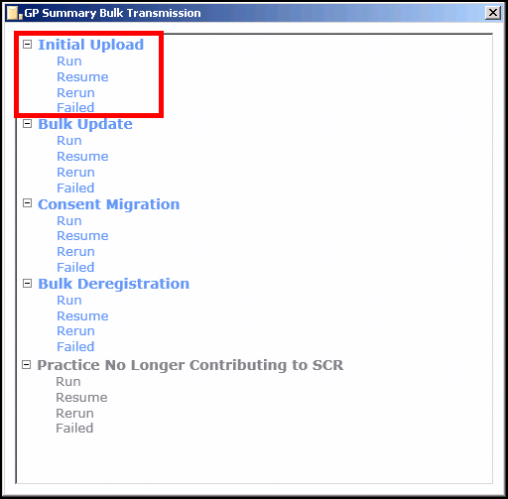
Initial Upload Menu
- Click to select the required option, eg run.
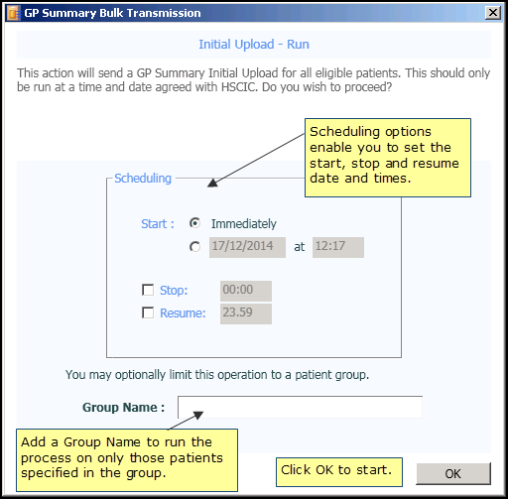
SCR Upload - Run
- To start the process immediately, click OK. Or set an alternate start, stop or resume time, add the required details. See Scheduling Options.
 Note - For both manual and scheduled uploads, your Smartcard should be left in the reader until your upload has completed, however, it should be noted that your Smartcard will automatically expire after 10 hours and in line with Information Governance, you must not leave your Smartcard unattended in the reader.
 - If you need to run the process on certain patients only you can use Group Name, see Patient Group Option for further details.
- Click OK to start the process. Once running if you need to pause or stop the process, use the two buttons available at the bottom of the screen. See How to Stop or Pause the Running Process for further details.
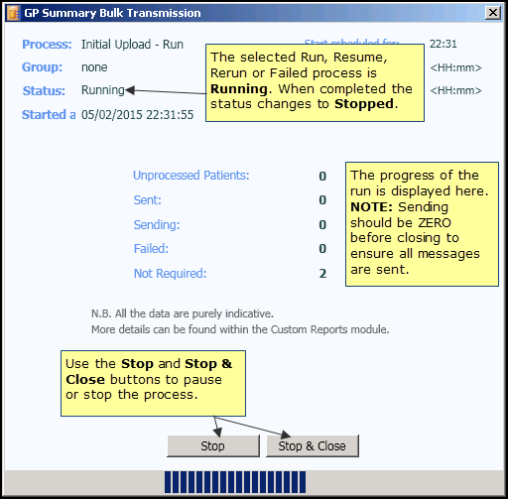
SCR Upload - Running
- When completed the Status changes to Stopped. You are prompted "Process completed." click OK. See Upload Completed/Finished.
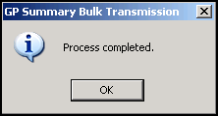
SCR Upload - Completed
- Use Stop & Close, to exit to the GP Summary Bulk Transmission screen to select another process, or click the cross
 in the top right to exit the module, you are prompted "Are you sure you want to exit the application?" . Click Yes.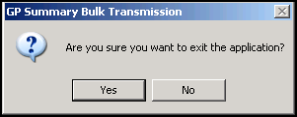
SCR Upload - Exit.

