
|
|
|
|
|


Viewing the SCR
To access the SCR Viewer:
- Go to Vision Front Screen - SCR - SCR Viewer
 .
.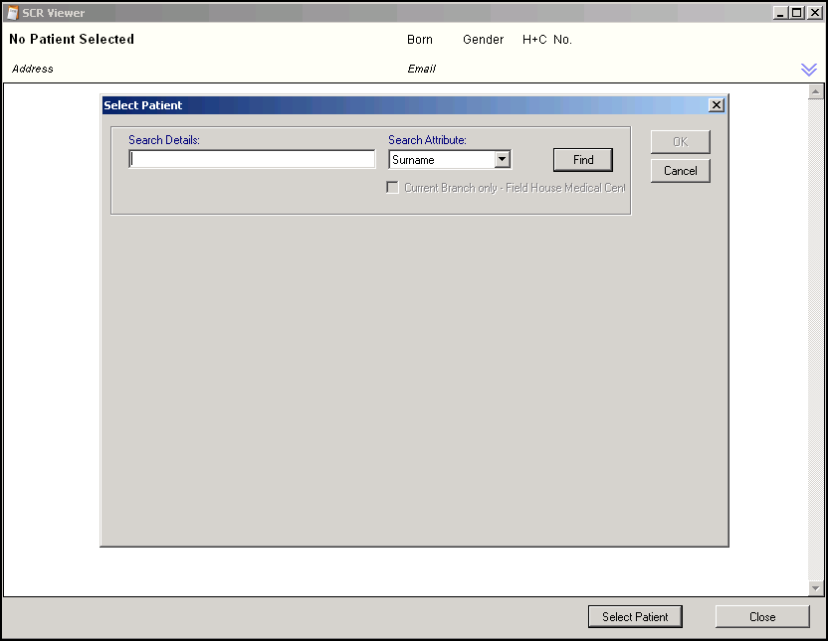
SCR Viewer
- The SCR Viewer window with the Select Patient box open is displayed, add the patient search details eg Surname.
 Note - If the patient has been registered without the mandatory demographic details, you are unable to select and view the patient's SCR record. See Patients without the Mandatory Registration Details
 - Click Find to search for the patient.
- Select the correct patient and click OK.
- A progress bar is displayed.
- If the patient is not permanently registered at the practice, their ACS consent status will be checked.
- If the patient has opted out of SCR, no summary will be displayed. You are prompted: "This patient does not have a Summary Care Record (has opted out)". Click OK.
- Patients without an NHS number are not accessible.
- You are prompted "Has the patient given you permission to view their Summary Care Record?" Select one of the following options:
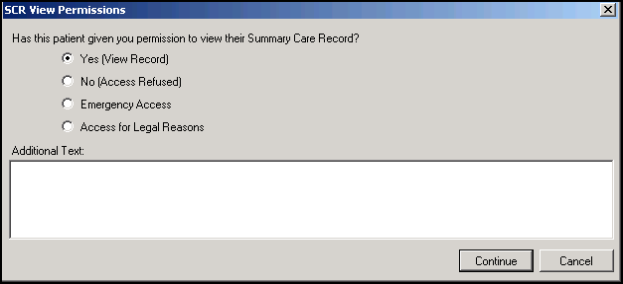
SCR Viewer - View Permissions
- Yes (View Record) - If the patient has given permission, click Yes - Continue, the patient's Summary Care Record is displayed.
- No (Access Refused) - If the patient has not given permission, click No - Continue. A "No document to show" message is displayed on the viewer, click OK.
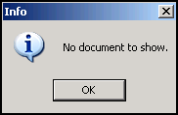
SCR Viewer - Patient Does Not Give Consent to View SCR

