Patient Group Import
The Patient Group Import App  enables you to create a patient group within Vision 3 from a spreadsheet. It is useful for sending recalls letters, SMS texts or general patient reporting.
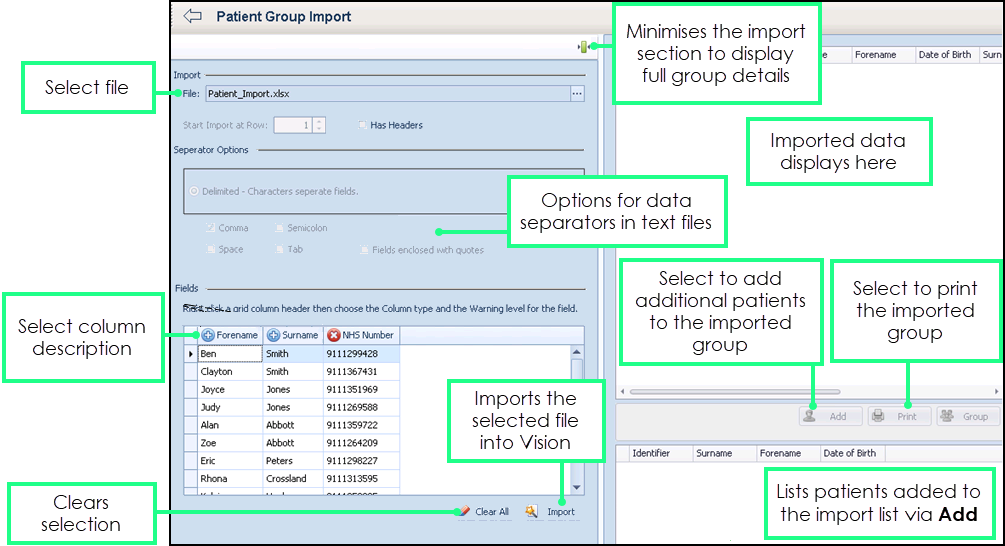
 Importing a Patient Group
To import a patient group from a spreadsheet:
- From Apps Controller, select System Utilities - Patient Group Import .
- From Imports - File:, click the browse button and navigate to the file you require.
- Highlight the file you require and select Open.
- File is populated with the spreadsheet name and Fields now displays the columns available.
- Complete as follows:
- Import:
- Start Import at Row - If the file you are importing contains one or more header rows, tick Has Headers and enter the first line of text to import here
- Has Headers - Tick to exclude headers from import.
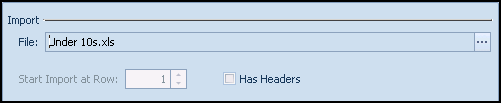
- Separator Options:
- Delimited - Characters separate fields - If you are importing data from a text file Delimited is enabled. Select the character that separates the values in your imported text file from the following selection:
- Comma
- Semicolon
- Space
- Tab
- Fields enclosed with quotes
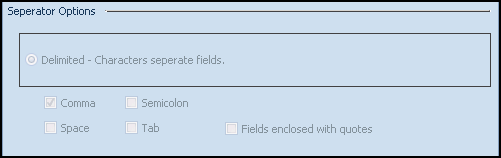
- Delimited - Characters separate fields - If you are importing data from a text file Delimited is enabled. Select the character that separates the values in your imported text file from the following selection:
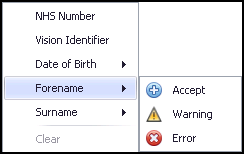
- Fields - Right click a grid column header and select the appropriate title.
- Import:
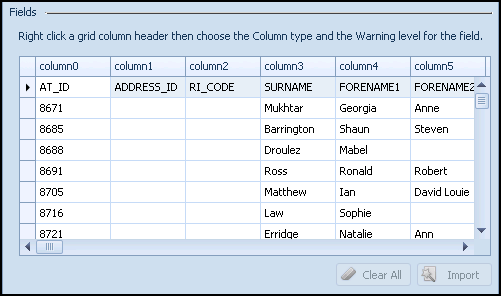
- Warnings - The warnings allow you to specify how the app handles the imported data. For the forename, surname and DOB options you can specify any of the following options where a discrepancy exists, select a Warning level for the field:
- Accept
- Select to, in effect, ignore the mismatch and accept the details.
- Warning
- Flags a mismatch exists so you can check it.
- Error
- Any patients that have a mismatch on the selected field(s) is excluded from the group generated
- NHS Number, CHI Number, H&C Number and Vision identifier (the unique identifiers) the app forces these to go into error so you cannot import a patient that doesn’t have a unique match.
- Select Import
 .
.
- The patients are imported and displayed in the top right pane.
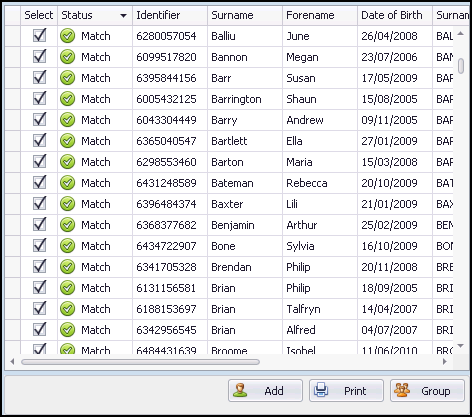
- Select Add
to add additional patients to your group, select them in the usual way.
- Select Print
to print the group created, print preview displays. Select Print
to print.
- Select Group
 to save the group you have created to Vision 3.
 - The Create a Patient Group screen displays, enter a name for your group.
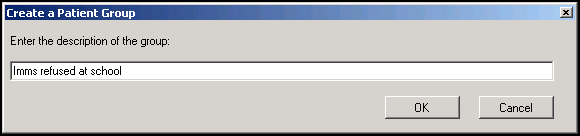
- Select OK, the Patient Group has been created message displays.
- Select OK, the group can now be used in the usual way throughout Vision 3.
 in the top right corner and follow the on-screen prompts.
