Bulk Signing Electronic Prescriptions
The All Prescriptions view provides a multi-patient view of prescriptions which is accessed via Consultation Manager. This screen has three main purposes:
- To facilitate the bulk signing process after prescriptions have been issued.
- To process items which need reviewing before signing.
- To facilitate the handling of message rejections.
To access the All Prescriptions view:
- From Consultation Manager select either:
- List All Prescriptions
 , or
, or - Consultation – List All Prescriptions
- List All Prescriptions
- The All Prescriptions button changes appearance depending on the current state of prescriptions in the system:
- - No prescriptions in workload and no errors
 - Prescriptions in workload
 - Rejected items have been detected
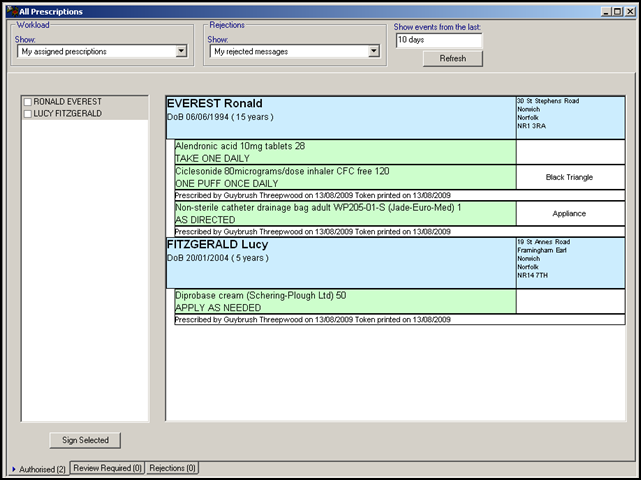
- The All Prescriptions screen displays.
-
Tick the patient required and their demographics and prescription details display.
- Check each prescription, ensuring you scroll down to the bottom of the list and select Sign Selected .
- The Apply Advanced Electronic Signature screen displays, enter your Smartcode passcode:
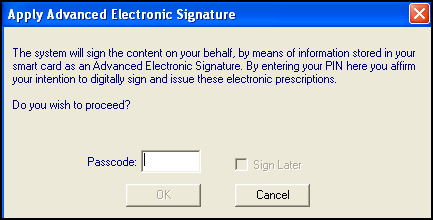
- Select OK.
- The Finalizing Prescriptions screen displays while the prescriptions for the selected patients are digitally signed and send:
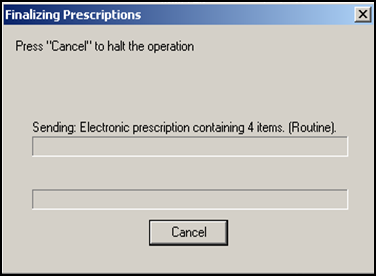
Note - If you select Cancel to halt the operation, the process is aborted after the current prescription is processed and no further prescriptions are sent.
- The signed prescriptions are now cleared from this view.

