|
|
Viewing the Current User list in different ways
Users are listed in the top left pane of the Security screen.
To select the data displayed in the panes:
- From Security, select Actions:

- Select the views you require, you can select one, two or all three of these option:
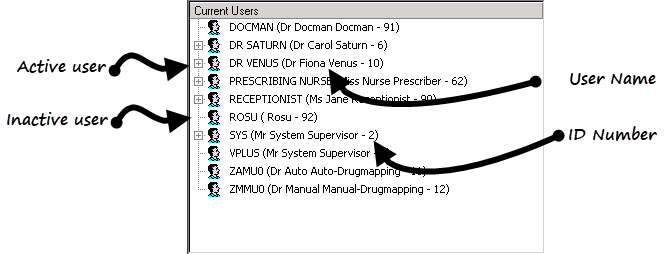
- View Inactive Users - Tick to include the users who cannot log on to Vision on the list. This is ticked by default, simply untick to view current users only.
- View User Names - Tick to include staff names as well as the login names in the list.
- View User IDs - Tick to display the staff Ids as well as the login names.
- Now select what is shown when you select
 next to a user's name, onlyone can be selected:
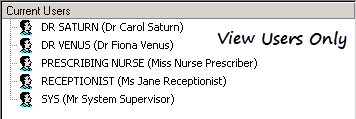
- View Users Only - The is removed and just a list of user names are displayed.
- View Users with Groups - Selected by default. Expanding the list beneath a user's name displays the Security groups they belong to, eg System Managers, Clinical Managers.

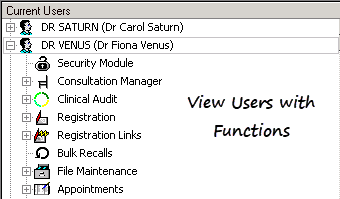
- View Users with Functions - Expanding the list beneath a user's name displays the Vision functions they have access to.
- View Users Only - The

