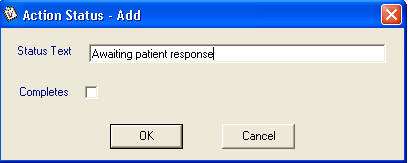
On the Action Status tab, right click on Initial Status, Selectable, or Discontinued and select Add. This is available on either the tree view or list view. The Add Status Code screen displays.
Status Text - Type in the wording of the status code. For example, under Initial Status, a status code of Newly Actioned. Or under Selectable, a status code of Complete. By default the Completes checkbox is unchecked. Other examples might be:
Newly actioned
Deferred
Called patient - no reply
In hand
Awaiting patient response
Awaiting laboratory response
Completed successfully (tick the Completes box)
Appointment made (tick the Completes box)
Unable to complete
Completes - Each action has the concept of being outstanding or complete. The status further qualifies the outstanding state but application of a particular status code may implicitly complete the action. For instance, an action of Make an appointment with a status code of Appointment made is implicitly complete. If the Completes flag is set on the status, then the action will automatically be completed. Note that Completed does not necessarily mean completed successfully and numerous status codes may mark an action as complete even though it has not been successfully performed.
Click OK.
Did you find this helpful?
Sorry about that
Want to tell us more? - Send an email to leave your feedback.
Or click here to submit a query directly with Customer Support.
Great!
Thanks for taking the time to give us some feedback.