Address Checker - England and Wales only
The structured Address screen is used in the following areas of Vision 3:
-
Registration - For example, patient or contact address.
-
Management Tool - Control Panel - File Maintenance:
-
Staff - For recording staff addresses.
-
Organisations - For example, practice details, hospital or pharmacy addresses.
-
Regardless of which address you are adding or updating, any address entered is validated against the Ordnance Survey Places database, this is a national database provided by NHS England. The reason behind this is to standardise the addresses held on the NHS Spine.
Using Address Search
To add or update an address using the Search facility:
-
From the appropriate screen within Vision 3, select the Address section/tab and the Address Details screen displays.
-
In Search enter the Post Code of the address you want to enter:
Note - To get the best match, enter the Post Code required in the standard format with the space, for example, AB12 3CD or E45 6FG.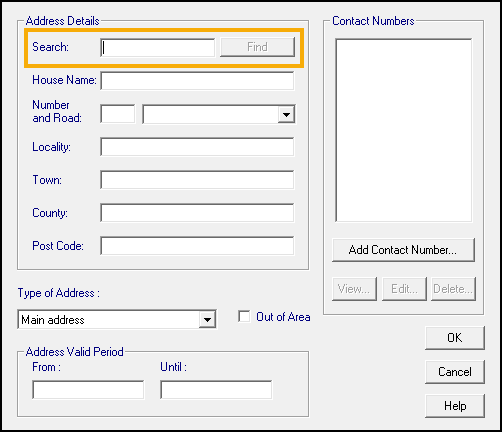
-
Select Find and Select Address displays with a list of matching addresses:
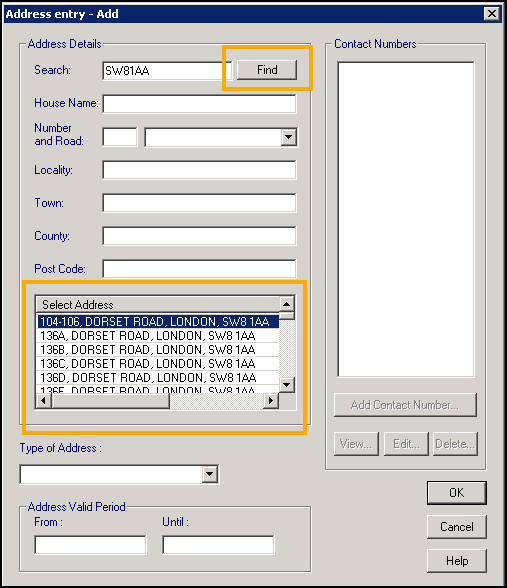 Important - Search is a free text option, you can enter any details, for example, a road name or number road name combination, High Street or 46 High Street, and select Find, however the number of returned results make identifying the required address more difficult. We therefore strongly recommend you search by Post Code in the standard format with the space.
 -
From Select Address, highlight the address required and the address details automatically complete.
-
Select the Type of Address in the usual way.
-
Select OK and the address is verified.
-
Select Close and the address is verified again.
Manually Completing or Updating Address Details
To add or update an address manually:
-
From the appropriate screen within Vision 3, select the Address section/tab and the Address Details screen displays.
-
Enter the address details in the appropriate sections.
-
Select the Type of Address in the usual way.
-
Select OK and the address is verified:
-
If the details you entered match the details held on the Ordnance Survey Places database, simply complete the Contact Number section in the usual way and select Close.
-
If the details you entered do not match the details held on the Ordnance Survey Places database, the 'The address does not match with the national database. Do you wish to continue.' message displays:
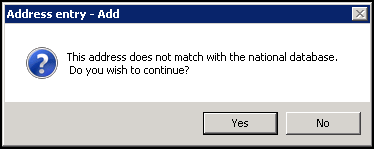
Select Yes to continue with your details, or No to change the details entered.
-
-
Select Close and the address is verified again.
 in the top right corner and follow the on-screen prompts.
