Running Practice No Longer Contributing to SCR
If a practice closes it Summary Care Record (SCR) must be disabled using the Practice No Longer Contributing to SCR functionality. This can only be run once the SCR function is disabled/switched off, see Enabling or Disabling SCR for details.
To run Practice No Longer Contributing to SCR:
- From the Vision 3 front screen, select the SCR tab.
- Select GP Summary Bulk Uploads
 and the GP Summary Bulk Transmission screen displays: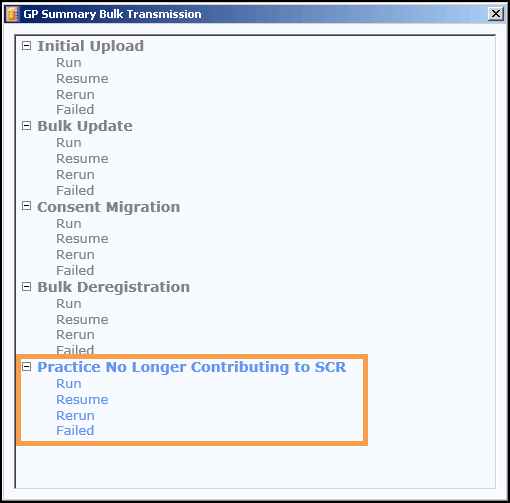
- From Practice No Longer Contributing to SCR, select from:
- Run - To send a GP summary update to the SCR of all eligible patients at this practice. Each update is annotated to indicate that the patient's practice is no longer contributing and no further updates are expected.
- Resume - To continue an ending contribution notification that has been paused.
- Rerun - To send a GP summary update to the SCR of all eligible patients at this practice. Each update is annotated to indicate that the patient's practice is no longer contributing and no further updates are expected.
- Failed - To reprocess all failed updates from the previous 'No Longer Registered' update.
Note - This function is not available until SCRhas been disabled. See Enabling or Disabling SCR for details. - Select the option required:
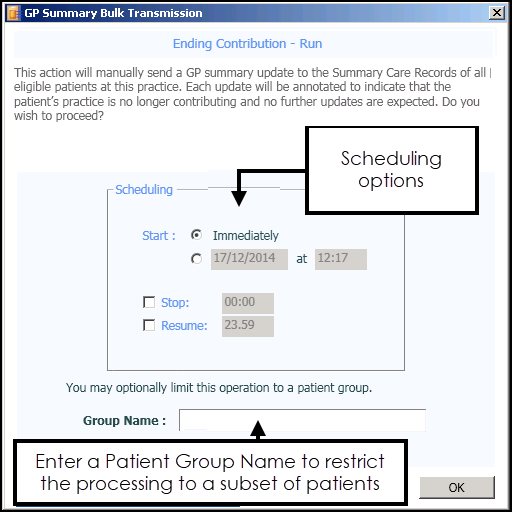
-
Select from:
- OK to start the process immediately, or
-
Set an alternate start, stop or resume time and then select OK, see Summary Care Record (SCR) Scheduling Options for details.
Note - For both manual and scheduled uploads, your Smartcard should be left in the reader until your upload has completed, however, it should be noted that your Smartcard automatically expires after 10 hours and in line with Information Governance, you must not leave your Smartcard unattended in the reader.Training Tip - If you need to run the process on certain patients only you can use Group Name, see Summary Care Record (SCR) Patient Group Option for further details.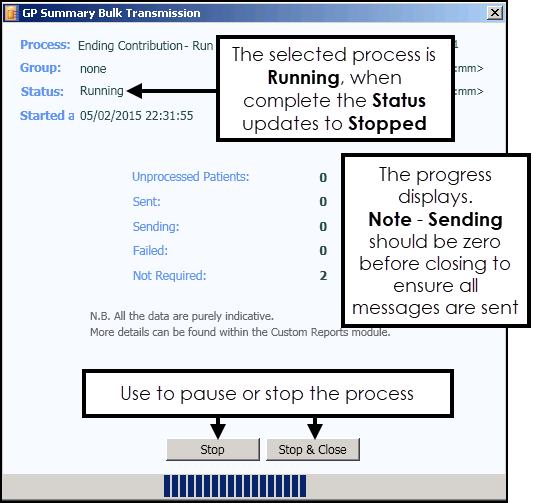
- When the process completes the Status changes to Stopped and the 'Process completed.' message displays, select OK:
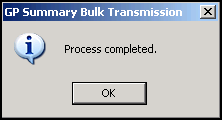 SeeSCR Upload Completed for details.
 -
Select Stop to pause the process, or Stop and Close to exit to the GP Summary Bulk Transmission screen and either select another process, or select Close
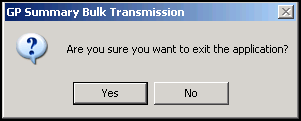
 to exit, the 'Are you sure you want to exit the application?' message displays, select Yes to continue:
 See Stopping or Pausing a Summary Care Record (SCR) Run for details.
 in the top right corner and follow the on-screen prompts.
