Creating a Patient Group from SCR Reporter
To save the output of a report as a Vision 3 patient group:
- Once you have run the required report, select Create Group from patients
 :
: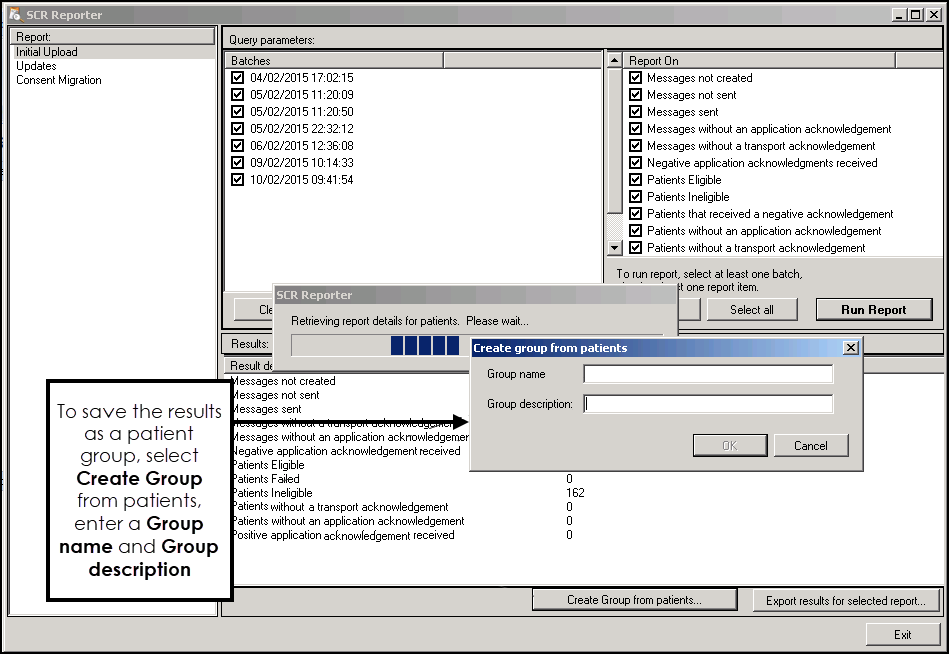
- You are prompted to add a Group name and Group Description, for example, group name: IU REPORT, group description: Initial Upload Report.
- Select OK to save.
- The 'Patient group created' message displays:
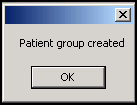
Select OK.
- Now either, select one of the other available reports, or Exit to close SCR Reporter.
The patient group can now be used in Vision 3. For example use the group in Patient Groups to add a reminder to the patient records, or select the group in Consultation Manager, using the Select a Patient group option from Consultation . This enables you to load each patients medical record to try to identify the problem , for example, a PDS mismatch.
Note - To print this topic select Print  in the top right corner and follow the on-screen prompts.
in the top right corner and follow the on-screen prompts.
