Moving a Patient's documents in Docman
The Merge Patient functionality moves clinical data from one patient's record to another and this includes attachments. However, it does not move the actual documents from Docman.
To move documents from one patient to another in Docman:
- Log into Docman.
- To check if the duplicate patient has documents that require moving, select the patient in Consultation Manager.
- Select Documents from the floating toolbar
 .
. - The patient's documents display, select Selected Documents - Select Mode:
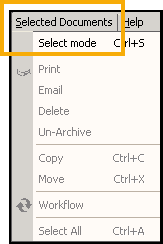
- All the documents you can select now display, you can select them individually or select Selected Documents - Select All.
- Select Selected Documents again and then Move.
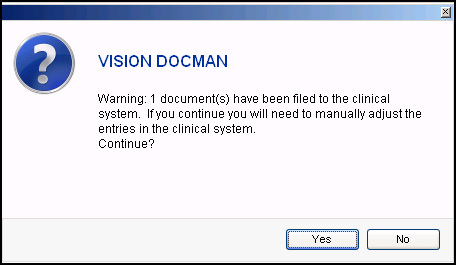
- The following warning displays, select Yes to continue:
- The Docman selection screen displays, highlight Patients and select Select.
- Enter your patient details in the usual way.
- A confirmation message displays when the documents have been moved.
Note - To print this topic select Print  in the top right corner and follow the on-screen prompts.
in the top right corner and follow the on-screen prompts.
