Creating a user
Create a User in Organisational Services
- Open the Shared Care Service you want to add the user to, see Searching for Users, Services and Sharing Agreements for details.
- Select Create User
 and the new Add User tab displays: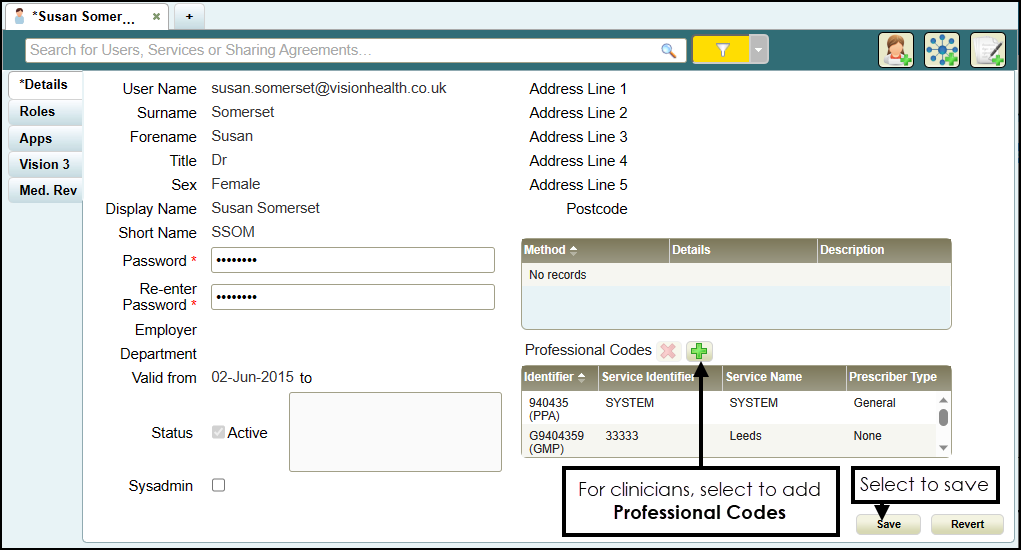
- Enter the new users details, items marked * are mandatory fields.
- The password must be a minimum of 6 characters and contain characters from at least three of the following categories:
- Upper case
- Lower case
- Numbers
- Non-alphanumeric characters: ~!@#$%^*_-+=`|\(){}[]:;'.?/
No spaces at the beginning or end of the password
The password must not contain three or more consecutive characters (case insensitive) from the user name, forename or surname.
- The password must be a minimum of 6 characters and contain characters from at least three of the following categories:
- For clinicians we recommend you add any relevant Professional Codes, for example, a GMC code:
- From Professional Codes, select Add
 .
. - The Professional Codes screen displays:
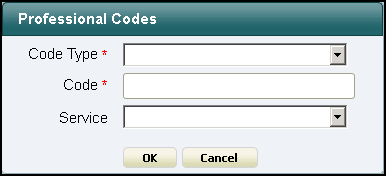
- Complete as required:
- Code Type - Select the type of code to record
- Code - Enter the code
- Service - Select from the list of services available for this user.
- Select OK.
- From Professional Codes, select Add
- Select Save
 .
.
Note - Sysadmin is for OneAdvanced use only and so is marked You cannot change this user's sysadmin status.
 Adding a User to an existing Service
- Open the Shared Care Service view, if you have just created the user, this is open at the top of your screen.
- Select User Roles and then Users - Add:
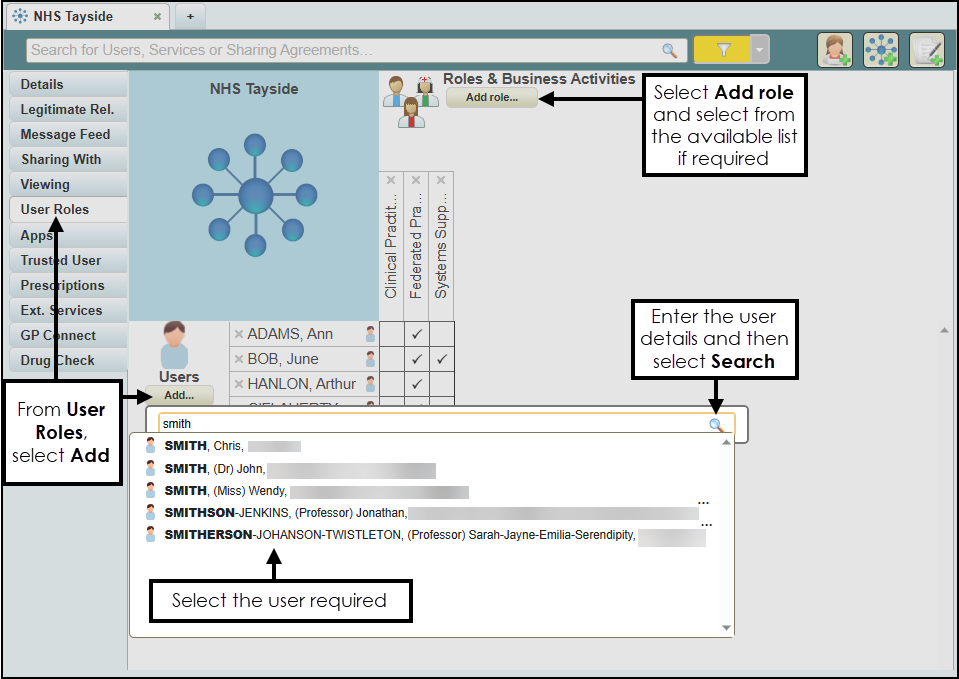
- Enter the user's details in the search bar and select Search
 .
. - Select the user from the results and the user is assigned to the shared care service.
-
Tick next to the user's name under the appropriate heading, to allocate their role. If required, select Add Role and select the role required for this user from the available list.
Note - To remove rights from a user, simply untick the box.
Training Tip - If you are using Chrome to access (Undefined variable: General.Vision360), ensure you have Options - Zoom set to 100% or the table may not line up.