Navigating the Formulary Management Screen
Once you log in, the Formulary Management screen displays, listing all the formularies you have access to. Simply double click on a formulary to view the contents:
-
Organisational log in - When you log into FMT at an organisational level, for example, as a Health Board pharmacist, your organisational formularies display at the top.

To the right of each formulary the status: Active/Draft or Subscribed/Unsubscribed displays.
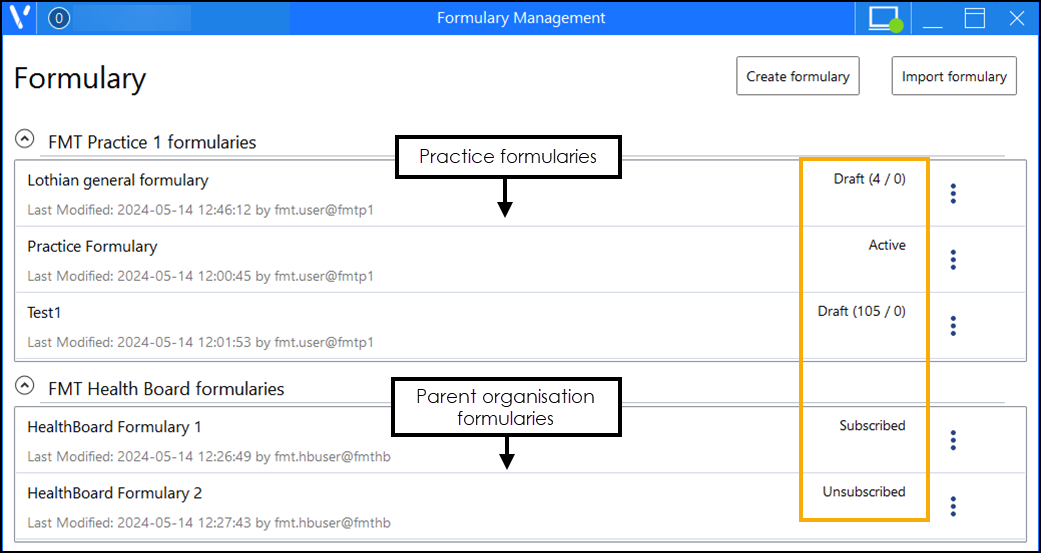
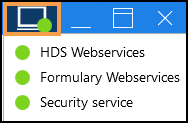
On the top right-hand corner of the Formulary Management screen, the Network Connection Status displays:
- Green - Indicates connected.
- Red/Orange - Indicated no network connection.
Select Network Connection Status to view your individual service connections.
 in the top right corner and follow the on-screen prompts.