What's New?
Formulary Management Tool Release 2.3
Summary of Changes
Formulary Management Tool (FMT) release 2.3 contains the following features and improvements:
-
Single Sign On (SSO) - When you log into FMT from your desktop, you are presented with the Vision Single Sign On screen.
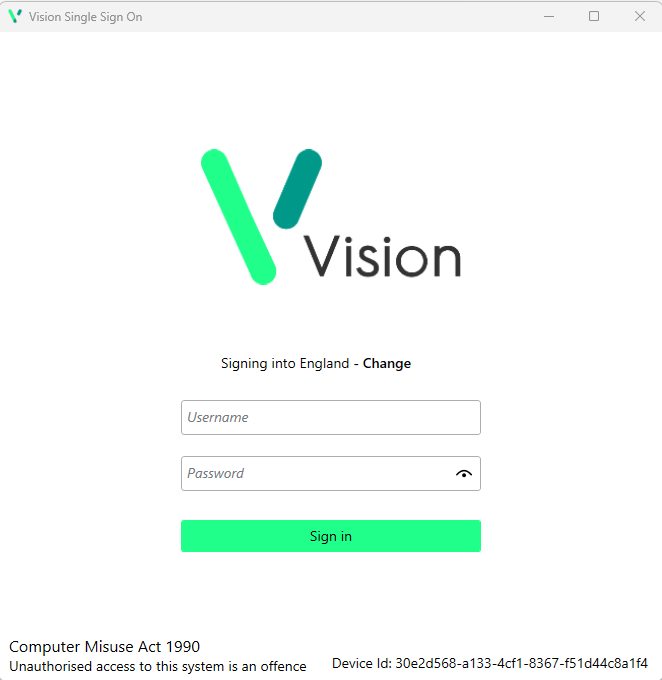 Important - It is vital that the first time you log on to FMT, following the 2.3 update, you are connected to the internet. This ensures your SSO set up runs correctly.
Simply enter your User Details and Password in the usual way and select Sign in, this triggers the SSO update.
-
Logging out of FMT - To support SSO across our products, you must log out of FMT via the Windows System Tray
 . See Signing Out for details.
 -
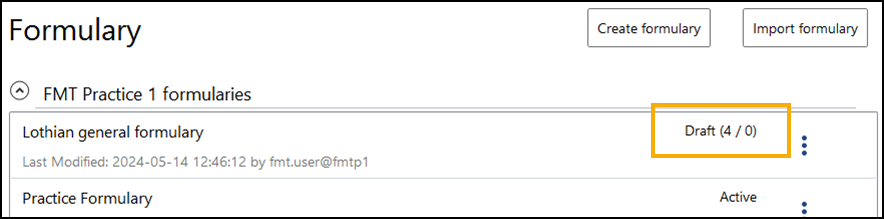
Draft Formulary Status - Where changes are made to a formulary but are not yet reviewed, they display on the Formulary list with a Draft(ccc/rrr) status, where 'ccc' is the number of changes and 'rrr' is the number of changes that are reviewed.
-
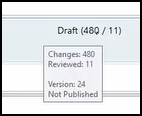
Version - If you hover over a status, a tool tip displays the selected formularies Version number and published status.
-
Adding items in bulk by Drug Class - If you select items by Drug Class to add in bulk, discontinued and unlicensed items are no longer included.
Note - Discontinued and unlicensed items can still be added manually, see Adding Items to a an existing formulary for details. -
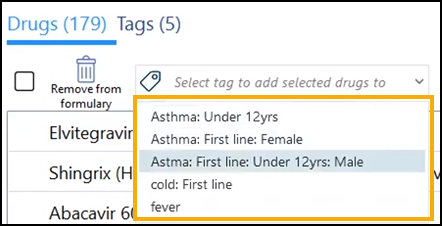
Adding an item to a Tag - To help you find the Tag required, when you choose Select tag to add selected drug to, the available Tags display in alphabetical order.
-
Tag Indicator - From within a formulary, if an item has a Tag assigned, you can hover over the Tagindicator
 to display the assigned Tag(s).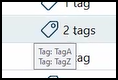
-
Unlicensed items - The following changes have been introduced to help you manage unlicensed items within a formulary.
-
There is a quick filter for Unlicensed items from the following screens:

-
Formulary List
-
Formulary Hierarchy
-
Tag Summary
-
-
Unlicensed indicator - Unlicensed items are indicated with the Unlicensed drugs
 symbol.
-
-
Item Defaults - Items with drug defaults attached are indicated with the Drug defaults present
 symbol in the following screens:
-
Formulary List
-
Formulary Hierarchy
-
Tag Summary
-
-
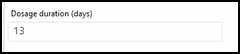
Drug Defaults - Dosage duration now displays in days.
-
Review changes screen - When you select Review changes
 the following additions and updates are now available:
-
Display - The review screen displays with a horizontal split. The Drugs list displays in the top section and the Tags display in the bottom section. Use the splitter bar to change the size of each section as required.
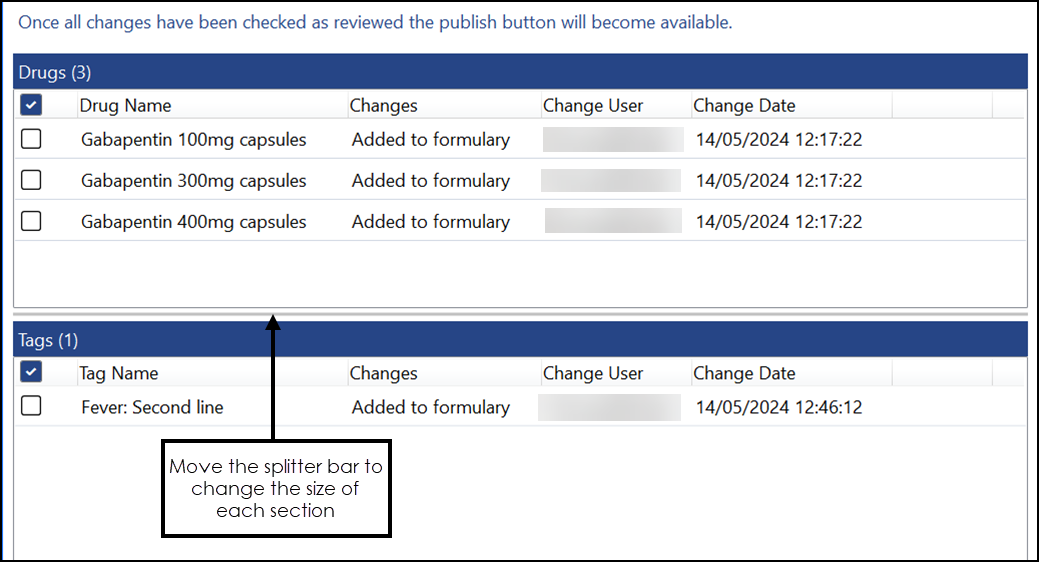 Note - Each section has a scroll bar where appropriate to move through the available list.
 -
Sorting - You can sort the list by column header, simply select the header to sort by.

Every time you update an aspect of an item, for example, add it to a Tag, an entry displays on the Drugs list. If you select to sort by Drug Name, all updates display in Drug Name and then Change Date order. This enables you to see an audit trail of actions for that item before publishing.
-
Undo - Now each update lists separately, you can select Undo
 on an individual change without reversing all updates for that item.
 -
Marking as Reviewed - You now have a tick box to mark an item as reviewed, simply select to tick, or select again to remove a tick.
-
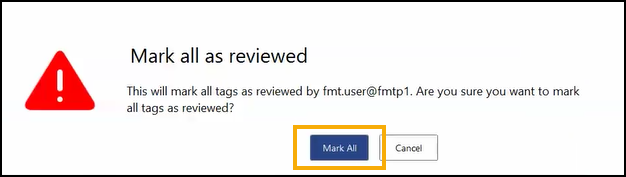
Select all - You can also tick alongside Drug Name in the Drugs section or Tag Name in the Tags section to select all items within a section.
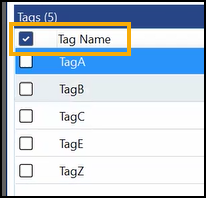
The appropriate 'Mark all...' message displays, select Mark All to confirm.
-
-
Edit - If you double click on an item from either section, the relevant Edit screen displays. You can select to update the following:
-
Tag - The Edit Tag screen displays, update as required.
-
Default or Drug - The Drugs screen displays with the relevant item selected. Update the aspect required.
-
To return to the Review change screen, select Review changes
. -
-
FMTVersion - You can see the version of FMT you are accessing from all FMT screens, it displays in the lower left-hand corner of application:

- Export Options - The Export facility has been enhanced to include the Export Human Readable option, this exports a readable version of the formulary intended for review or checking purposes, outside of the FMT application.
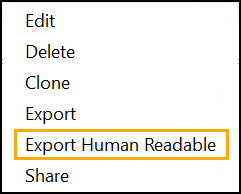 See Exporting and Importing Formularies for details.
 display grouped in alphabetical order at the bottom of any formulary list by default.
 in the top right corner and follow the on-screen prompts.