Re-Registering an Existing Patient
If a patient has already been added to your service, they must be re-registered, you cannot add a duplicated patient on to the system.
To re-register a patient:
- From the Vision 3 front screen, select Registration
 - Patient Select
  .
. - In Search Details enter the patient date of birth and in Search Attribute select Date of Birth.
- Remove the tick in Active Patients only.
- Select Find
 . Note - If the patient is not found on the patient list, see Adding a Patient in Vision 3 for a Health Board Call Handler (HBCH) for details.
 - The 'This patient is no longer active – do you wish to continue?' message displays, enter a reason, for example, Re-registration and select Yes to continue.
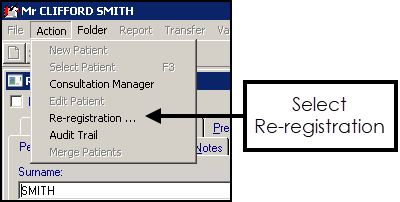
- The patient's Registration Details screen displays, select Action - Re-registration:
- The Registration - Personal Details screen displays, check the details and update where necessary:
- Registration status - Defaults to Applied, change to Immediately Necessary Treatment.
- Date Applied/Date Accepted - For patients re-registering, the applied date defaults to today and displays in red.
Training Tip - Press Tab on your keyboard to move through the form, do not press Enter until you reach the bottom of the form. - Once all the details are correct, select OK.
- Check the address and contact numbers are still accurate, select Edit and update them if required.
-
Select OK to save.
Note – To print this topic select Print  in the top right corner and follow the on-screen prompts.
in the top right corner and follow the on-screen prompts.
