Edit User
The Edit User function enables you to:
- Amend User Details
- Inactivate User
- Set/remove Administration rights
- Update Licences
To select a user:
- From the main Dashboard select the Administration tile.
- Select Users from the menu.
Users list displays.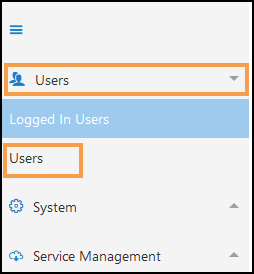
- Select the User you want to edit.
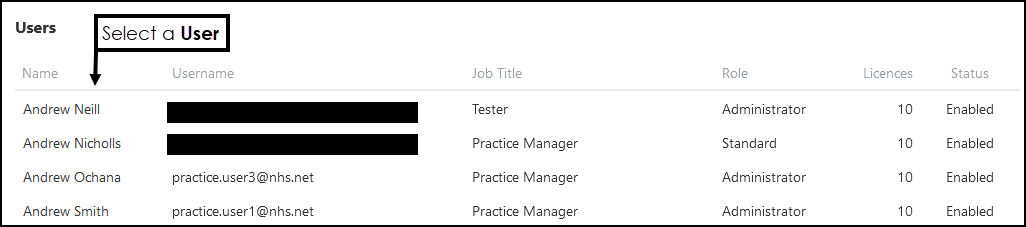
- From the toolbar select the Edit User.

- Update User details as required:
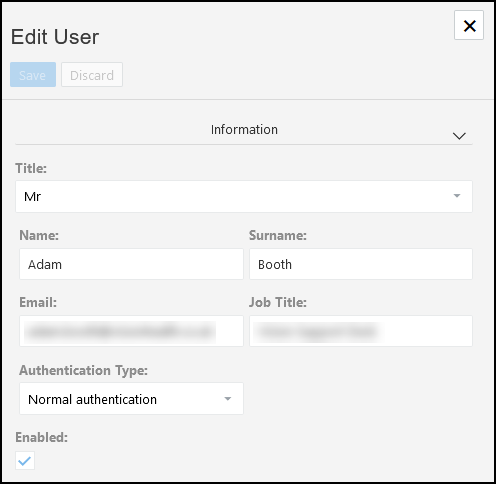
- Title (Mandatory)
Choose from the drop-down list:
Ms, Miss, Mrs, Mr, Dr or Prof. - Name (Mandatory)
- Surname (Mandatory)
- Email Address (Mandatory)
This must be an email address. - Job Title
- Authentication Type (Mandatory)
Choose from Normal authentication or Two Factor authentication - email (recommended). - Enabled (selected by default) activates the user account.
Select Save to update.
- Title (Mandatory)
- To Inactivate a user, clear the Enabled
checkbox.

- To set the user as an Administrator, select the Is administrator checkbox.
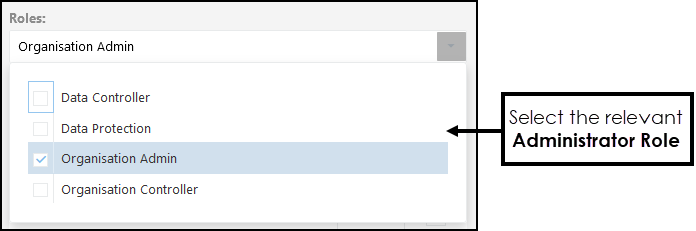
Alternatively, clear the Is administrator checkbox to remove Administration rights.
- To manage User Licenses:
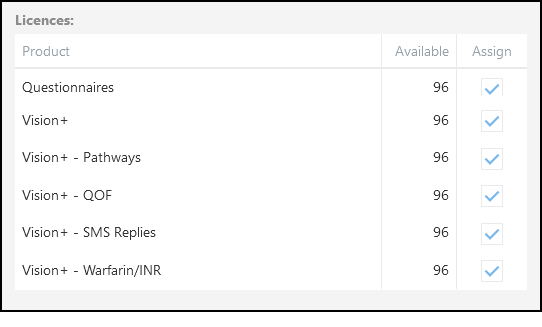
In the Licenses section select Assign to allocate available product licenses or clear the Assign checkbox to revoke a License.
Note - Revoked licences can be reallocated to other users. - Select Save to update.
See - Add User.