Reviewing a Workflow
When reviewing a Workflow a Reviewer can add comments to any nodes or the whole Workflow for the owner to action.
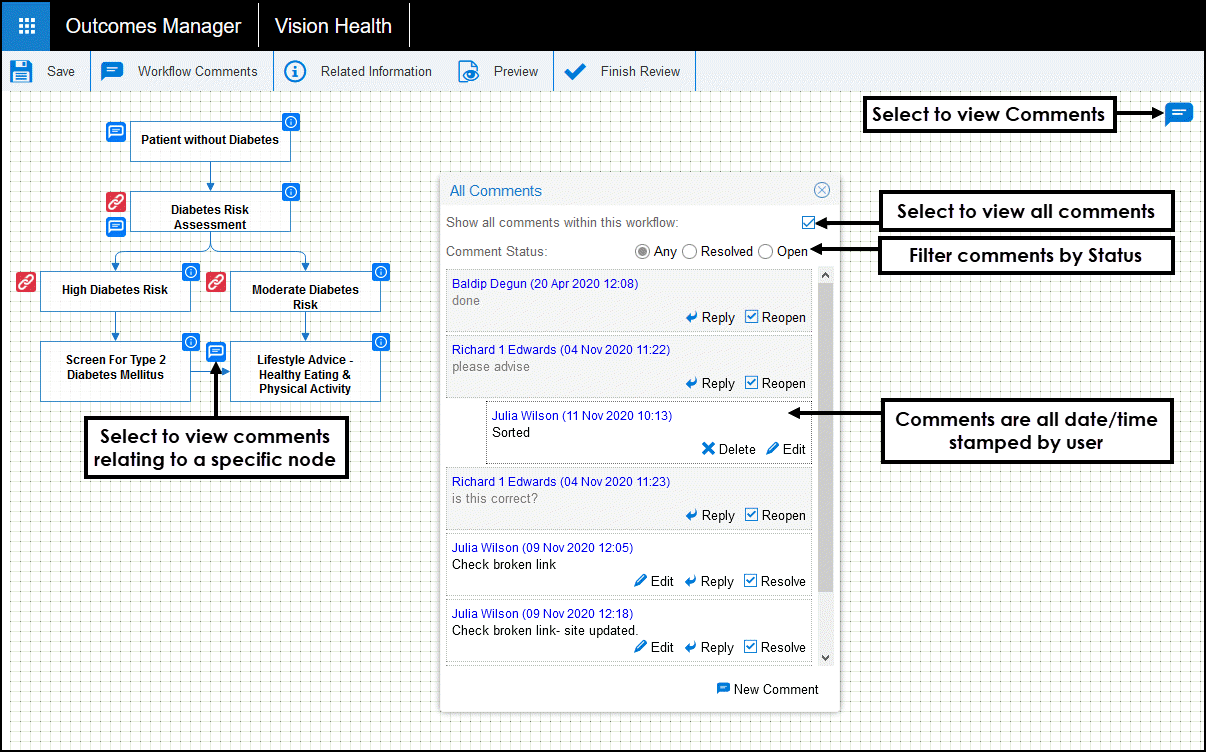
All the comments display the user's name and are date/time stamped, a notification displays if the comments have been edited.
Note - It is not possible
to make any changes to the layout.
Add Comments to a Workflow Node
- From the main Dashboard select Review.

All Workflow Review requests display.
- From the list select the Workflow to review.

- Optionally, to preview the Workflow select Preview
 from the toolbar.
 - Select a Workflow Node to add comments.
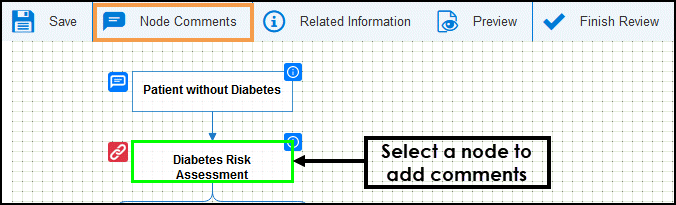
- Select Node Comments
from the toolbar.
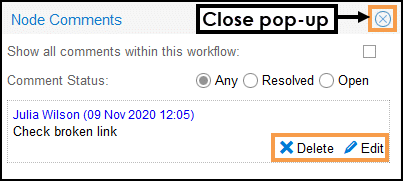
The Node Comments pop-up displays.
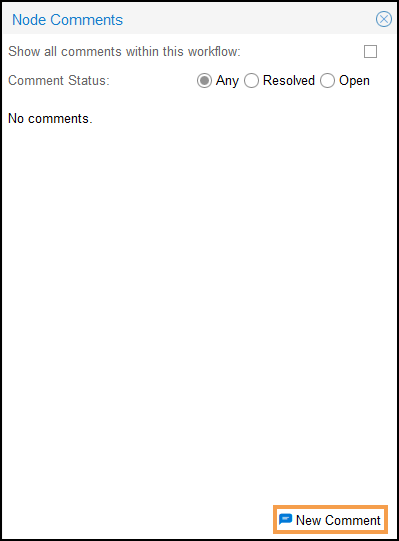
- Select New Comment from the lower right hand section of the pop-up.
The New Comment pop-up displays. - Add a comment.
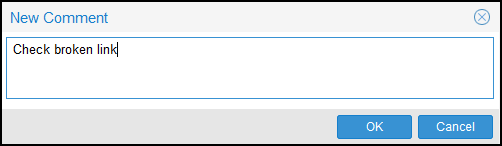
- Select OK to update.
The Node Comments pop-up refreshes with the new comment.
- If you need to make any changes, select Edit to amend or Delete to remove.
- Select X
in the top right hand corner of the Node Comments pop-up to close.
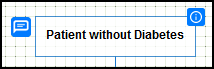
The Node displays a Speech Bubble to the left to indicate it has comments against it.
- Repeat as required.
- From the toolbar select Save before exiting.
To Add a Comment against a Workflow
- Select the Workflow Comments from the toolbar.
If the toolbar displays Node Comments select the workflow background to refresh.
- From the Workflow Comments pop-up select New Comment.
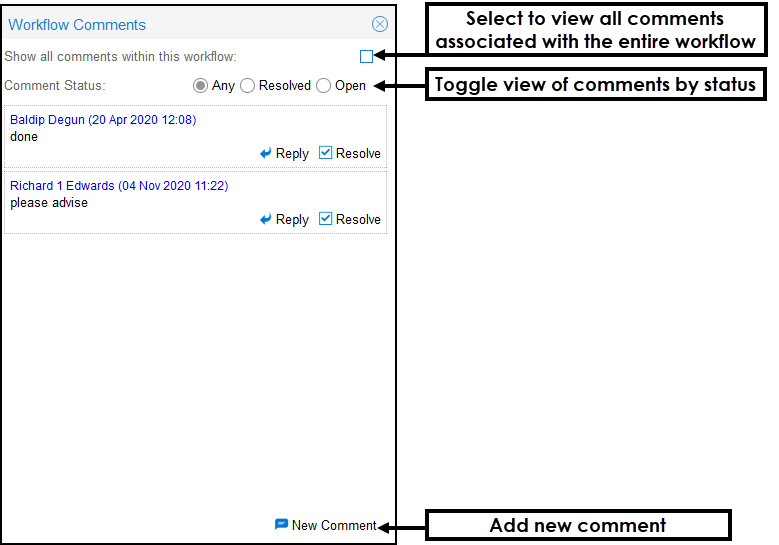
- Enter a comment and select OK to add.
- From the toolbar select Save before exiting.
To Edit a Comment
Note - You can only edit comments you have made.
- Select the Node from the workflow.
- Select either Node Comments from the toolbar or the Speech Bubble to the left of the node.
The Edit Comment pop-up displays.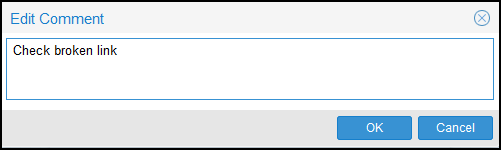
- Make any changes and select OK.
See - Complete Review.