Inactivating a Shared Care User
To inactive a Shared Care user:
- Open your browser and access Vision360 using the URL provided by the OneAdvanced implementation team.
- Login to Vision360 by entering your user name and password and select Sign In:

- From Please select a Role at a Service, select Systems Support Access Role:
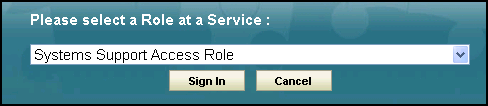
-
The Vision360 home screen displays, select Organisational Services
 .
. - The Service Details screen displays, select the user to inactive, see Search for a User if required.
- From Status, remove the Active tick:

- Select Save
 .
. - A Vision360 screen displays, enter a reason for inactivation and select OK:

-
The reason for changing the status, along with the date displays in the User - Details view:

- Now, open the Service Details for your organisation, see Search for Service if required.
- Select the User Roles view.
- The inactivated user displays with a line through, select the X to remove them from the list:

-
A Vision360 message displays, select Yes to dissociate the user:

Note - To print this topic select Print  in the top right corner and follow the on-screen prompts.
in the top right corner and follow the on-screen prompts.