Exporting SCR Reports as CSV Files
To save the output of a Summary Care Record (SCR) report as a .csv file that can be used in Microsoft Excel:
- Once you have run the required report, select Export results for selected report
 :
: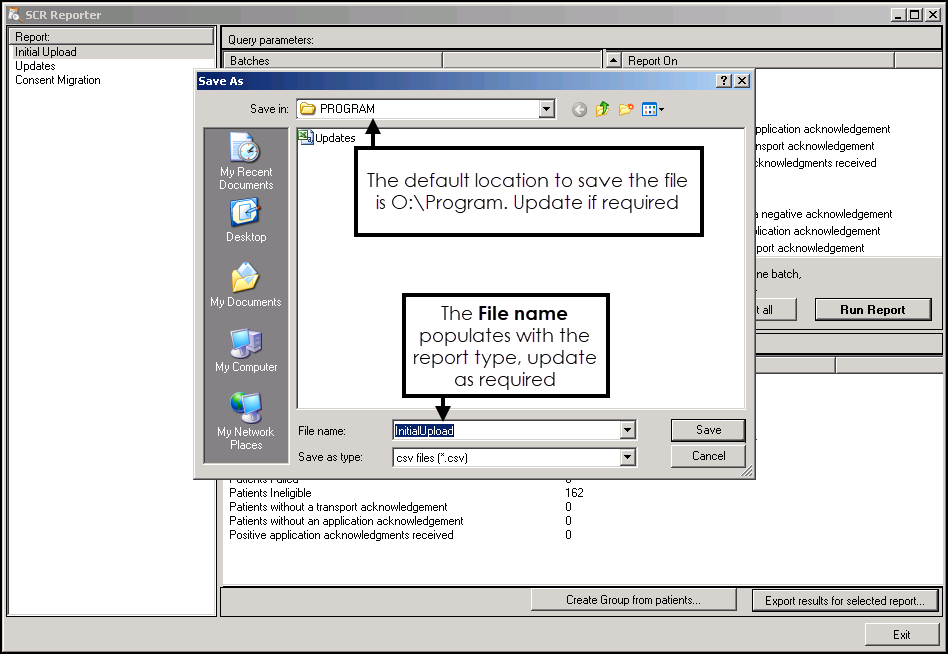
- The Save As screen displays, the File name defaults to the report type by default, update as required.
- Select Save.
- If you have included numerous batches the 'Results will retrieved for report InitialUpload for all batches. This might take some-time depending upon the size of the data. Do you wish to continue?' message, may display. Select Yes to continue:

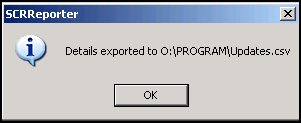
- A progress bar displays and then you are prompted 'Details exported to (the selected location)'. Select OK:
- Now either, select one of the other available reports, or Exit to close SCR Reporter.
- To view the csv file, open Microsoft Excel and from File, select Open and locate the saved file.
Note - To print this topic select Print  in the top right corner and follow the on-screen prompts.
in the top right corner and follow the on-screen prompts.
