Logging In & Single Sign On (SSO)
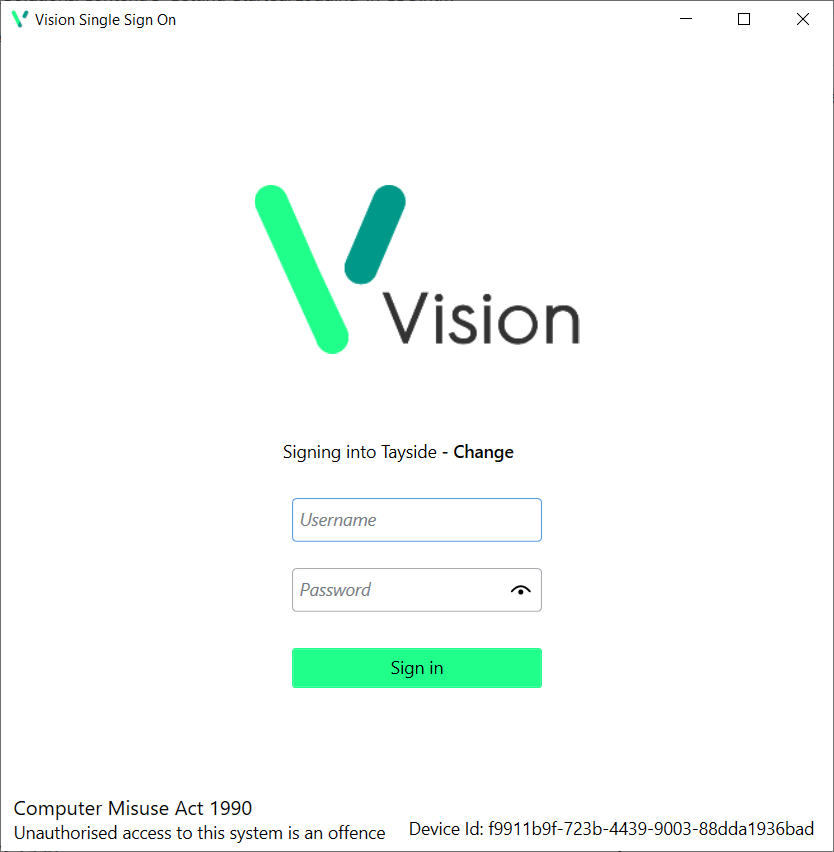
When you open any of the Vision applications listed below, you are presented with the Vision Single Sign On (SSO) screen. From here, you can login with your usual Vision credentials. Once you have successfully authenticated, you are able to open any of the other apps below without having to enter your login credentials again.
-
Vision Anywhere
-
Appointments
-
Appointments Setup
-
Tasks
To login to Vision Anywhere:
-
From your Windows Desktop, select Vision Anywhere
 .
. -
The first time you log in, you must select your country. Simply select from the list available and select Continue.
-
Enter your Username and Password
-
Practice Users - Your username is the email address as set in Vision 3 Control Panel - File Maintenance, your password is the same as your Vision 3 password.
-
Shared Care Users - If you are already a practice Vision 3 user, then your username and password to access shared care services are the same. For those who do not have a Vision 3 account, your username and password is created in Vision 360 - Organisational Services and is provided by your systems administrator.
-
Select Sign in.
-
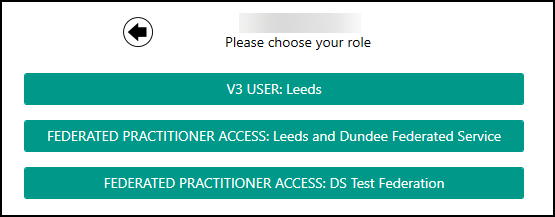
If you have multiple roles, for example, if you work for more than one practice, or a practice and a federation, you must now select the appropriate role for this session:
-
Select the appointments book you want to work from, for example, you can select your name to see your appointments list, another member of staff, a shared care setting or simply select Sign in without an appointment book from the list:
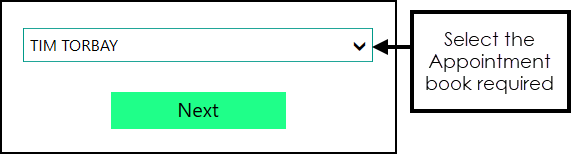
- Finally, select Next to display the Vision Anywhere Home screen.
Opening Apps
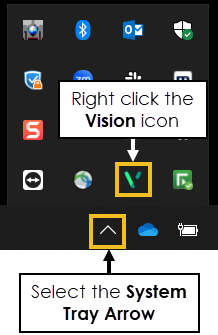
Once you have logged into an application, you can access other applications via the Windows System Tray:
-
Select the System Tray Arrow
 and right click the Vision icon.
-
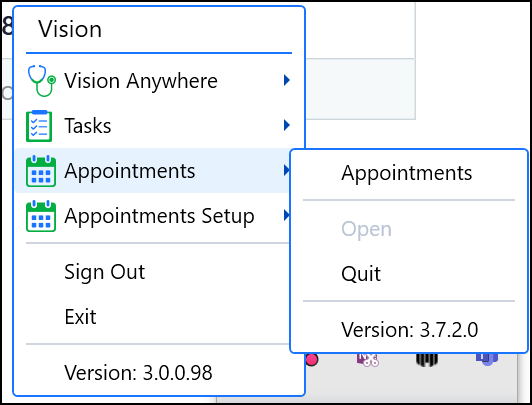
The Vision menu displays:
-
From the list, select the app you want to open and click on the name in the sub-menu.
-
Your selected app will open and you will be automatically signed in.
Closing Individual Apps
To close individual applications, you must do this from the System Tray as follows:
-
Select the System Tray Arrow
and right click the Vision icon.
-
The Vision menu displays:
-
Select the app you want to close and select Quit.
-
The app is now closed. Any other apps remain open.
Signing Out of All Apps
To sign out of all applications in one go (which you will need to do if sharing workstations):
-
Select the System Tray Arrow
and right click the Vision icon.
-
The Vision menu displays:
-
Select one of the following:
-
Sign Out - This closes your SSO session but allows you to launch apps from the System and log back in.
-
Exit - This closes your SSO session and all the application shortcuts in the system tray. You need to launch apps from the desktop icons to re-login.
-