Synchronising Repeats
A patient's repeat medication can be synchronised to the same repeat until date and issue frequency to simplify medication reviews.
Important - Please be aware, Vision Anywhere only displays Medication from the last 2 year excluding those with no date assigned to them.
To synchronise repeats:
- From Vision Anywhere, open a patient record, see Patient Summary for details.
- Select the Medication heading and the Medication screen displays.
- Select Reauthorise and a list of valid items for reauthorisation displays:
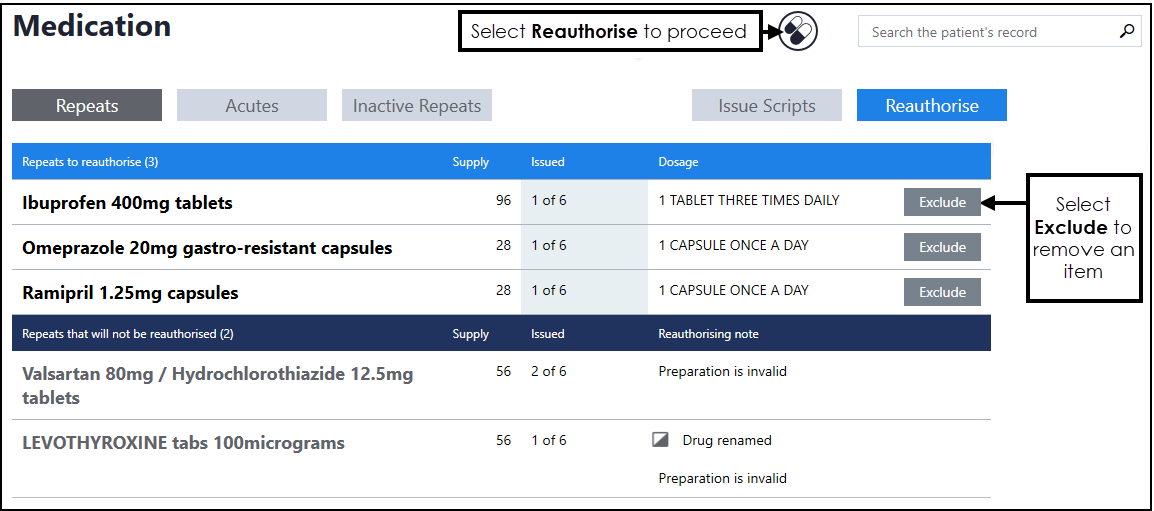
- Review the items and select Exclude to remove any drugs not required.
- Now select Reauthorise
 and the Synchronise Repeats screen displays.
Note - If you do not want to synchronise the repeats you can simply select Reauthorise, without selecting Treatment duration and Issue frequency.
and the Synchronise Repeats screen displays.
Note - If you do not want to synchronise the repeats you can simply select Reauthorise, without selecting Treatment duration and Issue frequency. - Select a Treatment duration and an Issue frequency from the available list, see Duration and Issue Frequency for details:
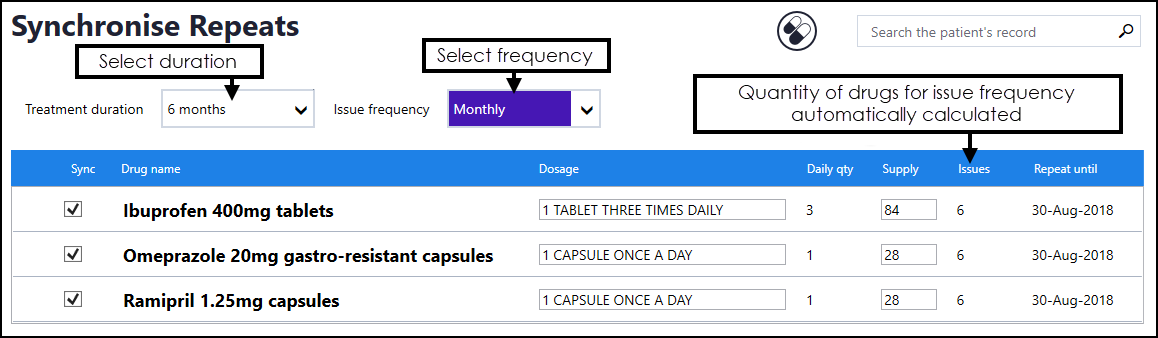
- The quantity of drugs for the issue frequency, for example, monthly, calculates supply based on the daily quantity. Treatment duration, for example, 6 months, updates the Repeat Until date.
Note - Not all items can be automatically synchronised, alerts display additional information, see Synchronisation Alerts for details.
- Review the Dosage and Supply, update if required.
Training Tip - Remove the tick in front of the item name to reauthorise it without synchronising it.
- Select Reauthorise to proceed.
- Select each item to review the prescriber warnings. If you wish to change the medication, select Cancel to return to the previous screen:
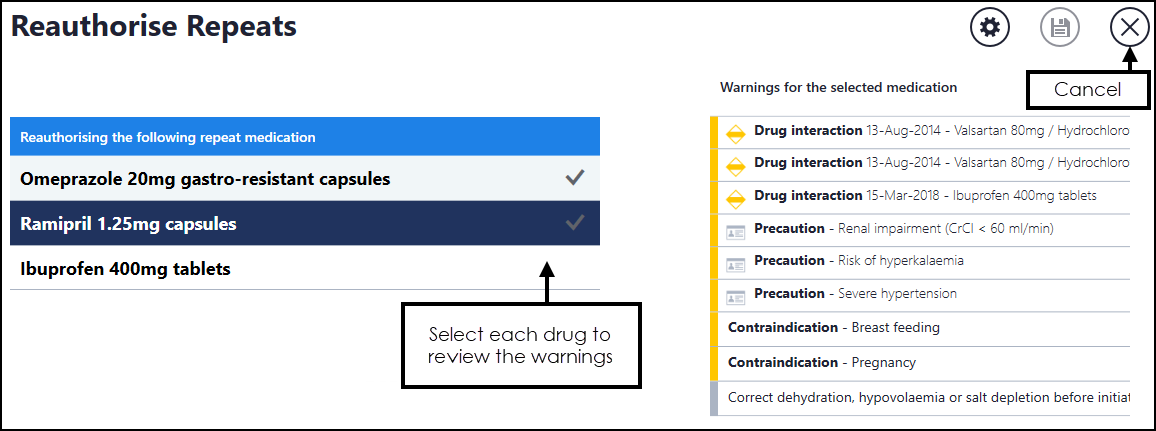
- Select Save
 to finish.
A confirmation message 'Reauthorising repeat medication' displays at the top of the screen during the reauthorisation process, this changes to 'Reauthorisation complete' to indicate successful reauthorisation. If reauthorisation fails, a warning displays, see Synchronisation Failed for details.
See Repeat Synchronisation Overview for details.
Note - To print this topic select Print  in the top right corner and follow the on-screen prompts.
in the top right corner and follow the on-screen prompts.