What's New?
Vision Anywhere for Windows Desktop Release 4.10.8
Summary of Changes
Vision Anywhere release 4.10.8 contains the following new features and improvements:
The 4.10.8 release of Vision Anywhere introduces a series of highly requested enhancements designed to streamline clinical workflows, improve data accuracy, and give practices more control over permissions and safety. Below is an overview of the key improvements included in this release.
Patient Warnings:
-
Customers who have the Add/Edit Patient Warnings permission can now create and update warnings directly.
-
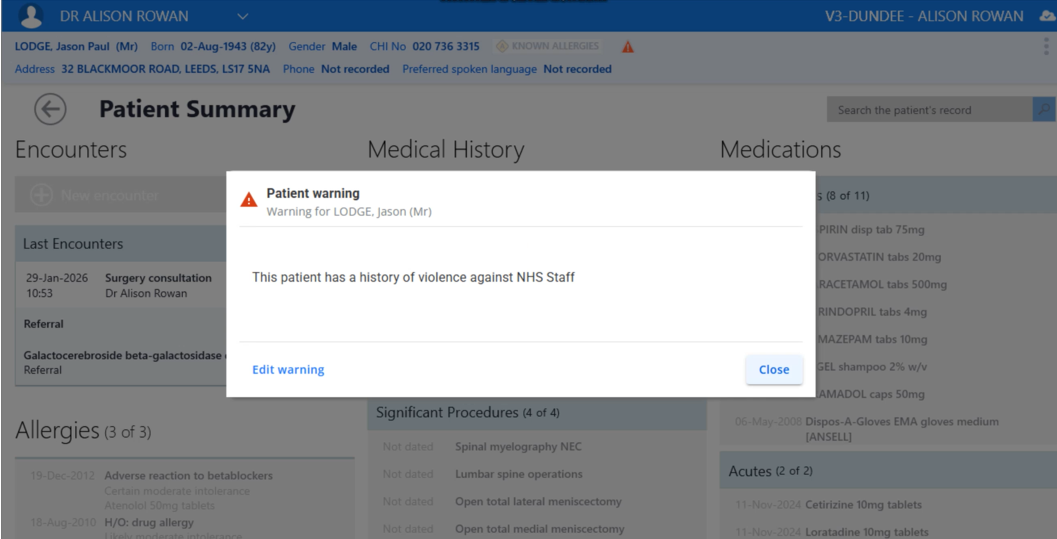
When a patient is retrieved from the system if a warning has been set up it will display when the patients record is open.
-
This warning will appear from the search results and from the patients record in the Appointment list.
Note
The feature of Adding and editing warnings is possible for practice users. Federated users can only view patient warnings .
Discreet warnings can also be set up which will not be displayed immediately when the patient record is open.
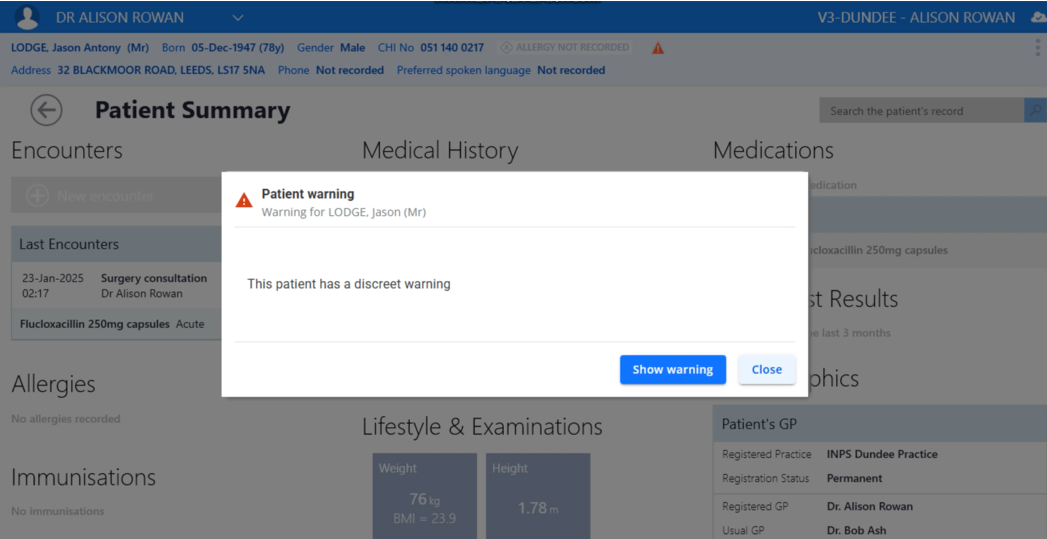
Discreet warnings can be viewed by selecting Show warning.
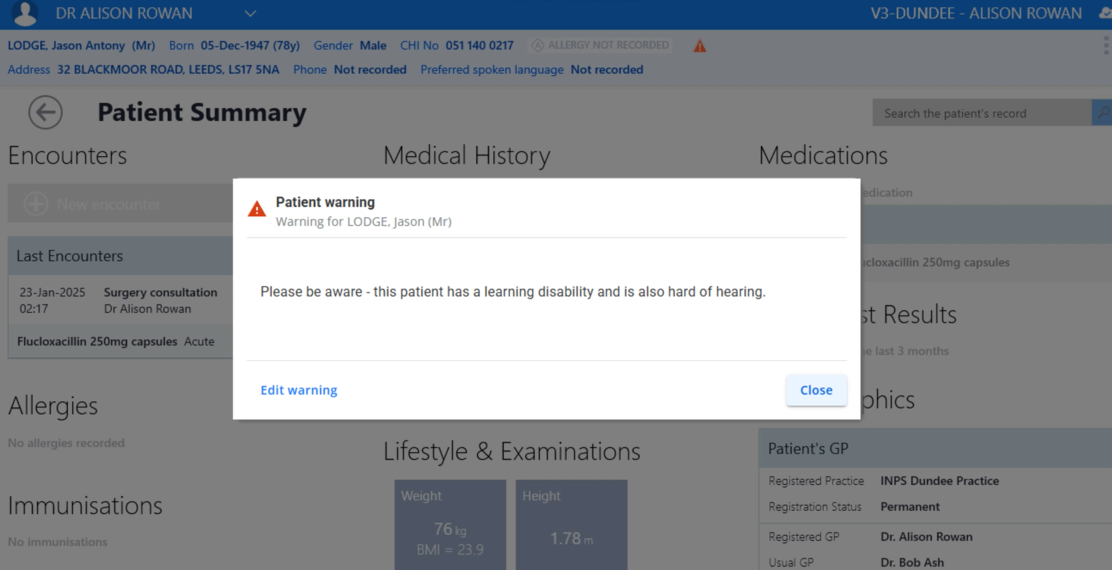
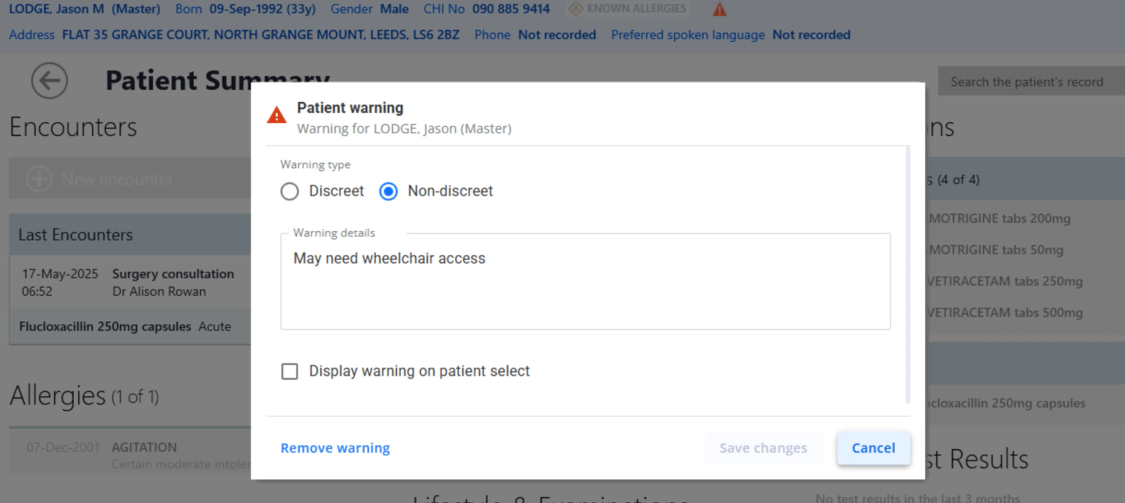
Warnings can be edited and removed if required.
All patient warnings are audited and can be viewed by searching the Audit Logs.
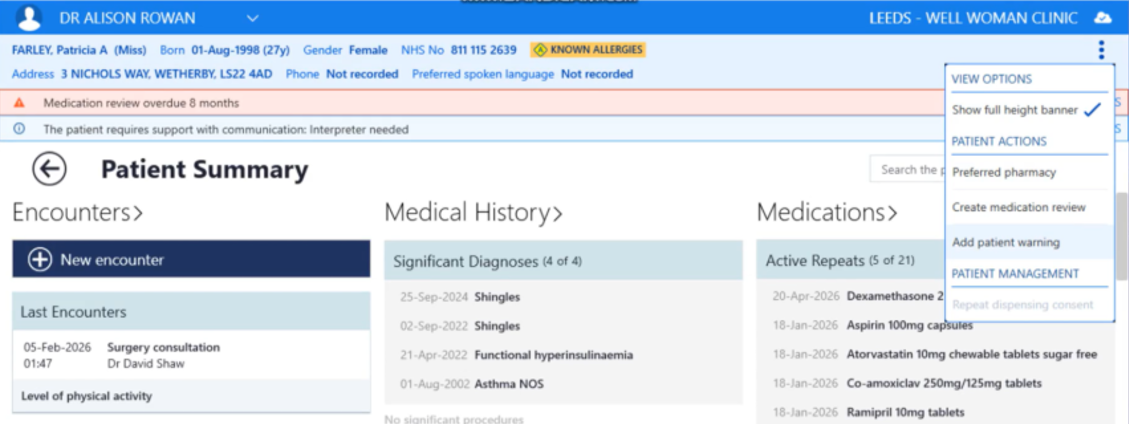
To add a warning to a patient record:
1. Click on the three ellipses (top right-hand corner)
2. Select Add patient warning
3. If a warning is already attached to a patient record, Edit patient warning will be displayed.
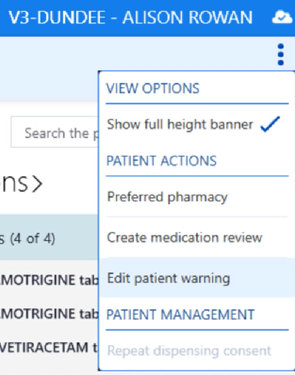
To edit a warning:
1. Click on the three ellipses (top right-hand corner)
2. Select Edit patient warning
3. Warnings can also be edited from the Patient Warning dialogue box.
Notes:
-
If the current patient has a warning attached to the record, the warning icon will be displayed on the patient banner. If no warnings exist, the icon is hidden.
-
Warnings can contain up to 250 characters.
-
Users without permissions cannot create warnings.
-
Discreet warnings hide the message, while non discreet warnings display it.
-
Customers working in federated settings can view Patient Warnings but cannot edit them.
-
Warnings must be acknowledged before the patient record can be viewed.
-
The warning can be viewed at any time by clicking on the warning icon in the Patient Banner.
-
Patients can only have one warning.
-
All activity is fully audited.
Cervical Cytology
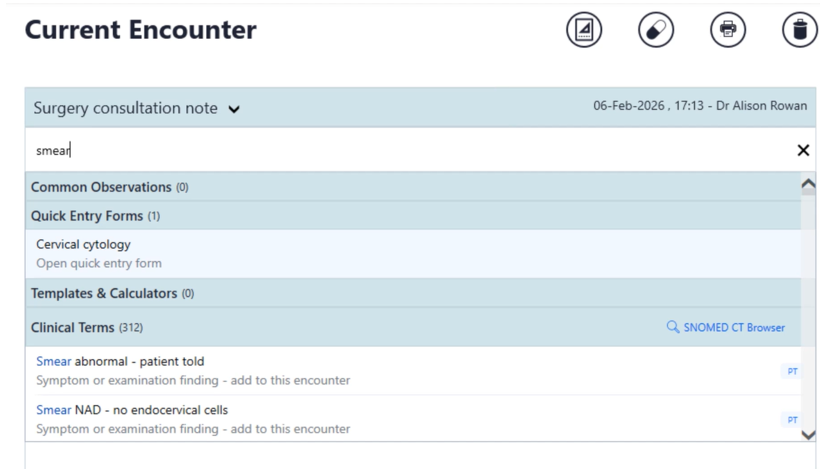
The Cervical Cytology form is now easier to access and use. When starting a new encounter, users can search keywords such as Smear, HPV, Cervical or Cytology to surface the form quickly.
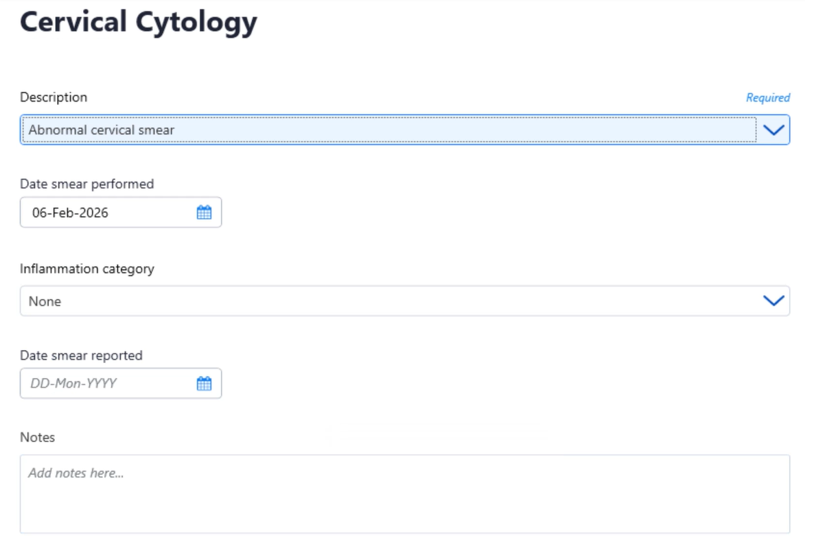
Searching specific clinical terms such as Abnormal cervical smear or Cervical smear – borderline change in endocervical cells opens the form automatically, with the Description already populated
-
To add a Cervical Cytology record, users simply complete the Description and Date Performed fields.
-
Saving the form now includes validation: Date smear performed is mandatory.
-
The Description drop-down shows all SNOMED terms from the Cervical Cytology subset.
-
Users can also choose to exclude a record from target reporting and select the reason for exclusion.
The Cervical Cytology form is suggested when relevant keywords are entered in the Current Encounter search:
The form is also opened when choosing the Quick Entry option and selecting a clinical term in the Cervical Cytology subset:
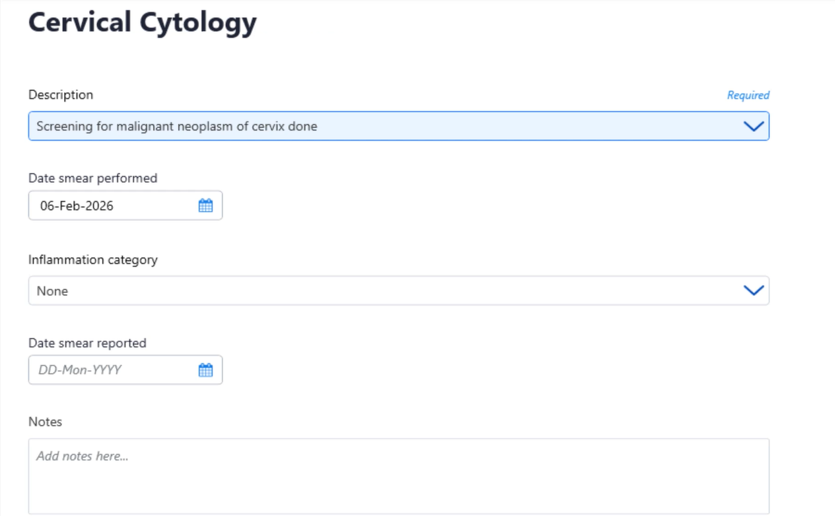
All fields are optional except for Description and Date smear performed:
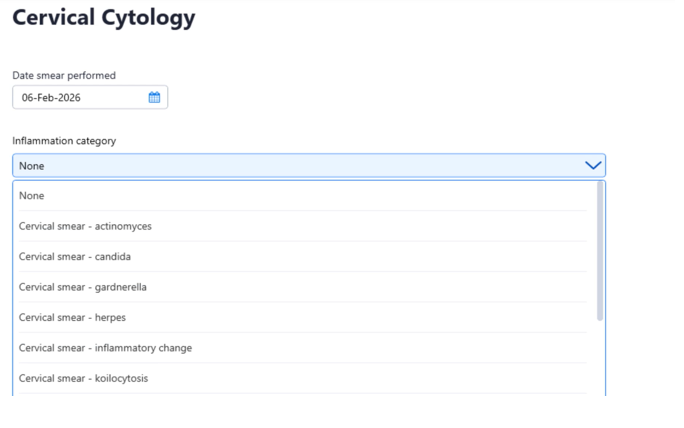
The Inflammation category drop down will include all terms in the Vision Anywhere Cervical Cytology Inflammation SNOMED subset:
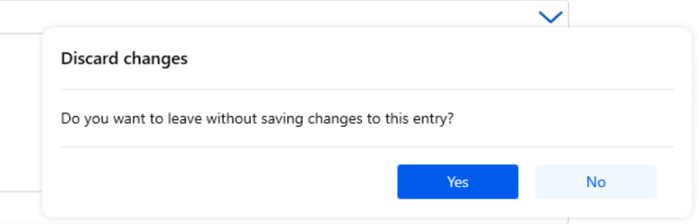
A warning prompt will appear when closing the form advising the user that changes have not been saved:
BMI Calculations
The BMI now recalculates automatically when height or weight is updated.
-
Deleting the height before closing the encounter will reset the BMI to its previous value.
-
The Weight form now displays recorded height with date.
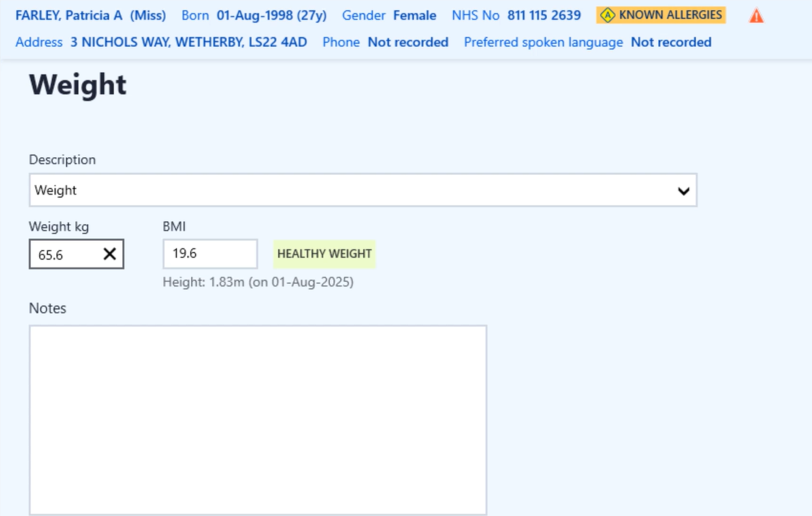
Note: A warning prompt will appear when closing the form advising the user that changes have not been saved.
General History Form Updates
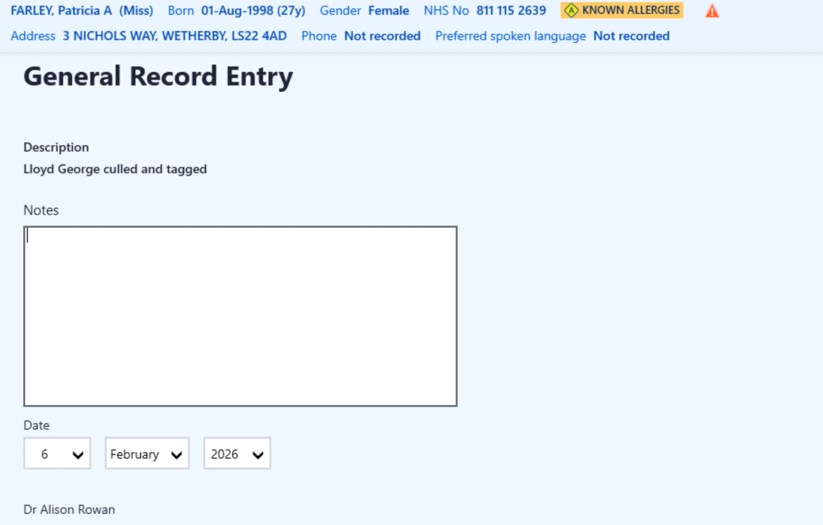
Medical History and General Record Entry forms now support both standard and value-based modes depending on the term selected.
-
Standard mode: Clinical Term, Notes, Date (+ Priority & Episode for Medical History). Value-based mode: adds a Value field.
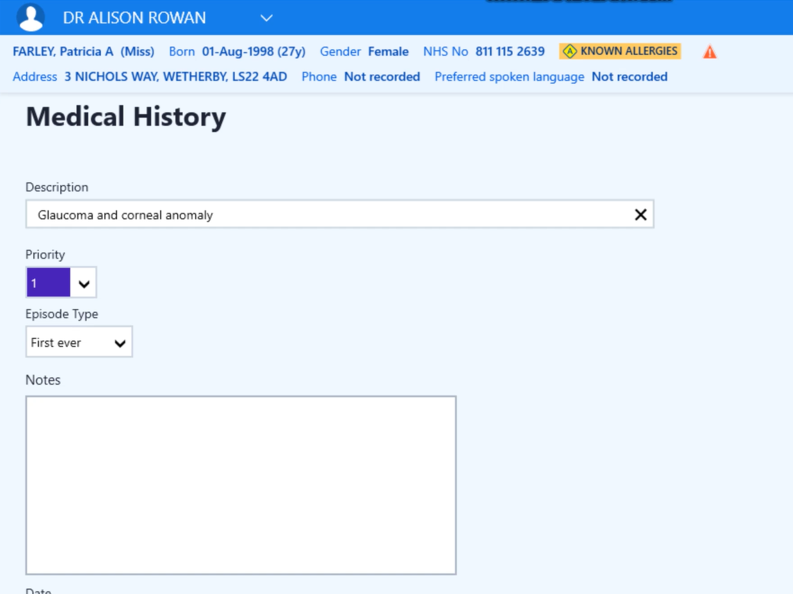
The fields will be specific to the form e.g. the value field will not be present in the General Record Entry form:
Score records are entered using a version of Medical History form that includes a value field.
LibreOffice Template Support
Vision Anywhere now supports LibreOffice templates created in Vision 3.
-
LibreOffice templates created in Vision 3 can be accessed in Vision Anywherereferral forms.
-
Templates retain formatting, colours, and styles.
-
Templates used in referrals are saved in the encounter attachments.
-
Mail merge fields are fully supported.
Immunisation Enhancements
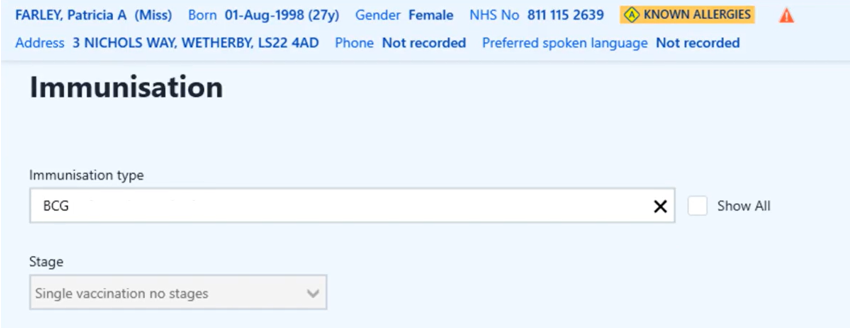
A series of improvements make immunisation entry safer and clearer including:
-
Minimum age threshold warnings.
-
Disabling of Stage when no stages exist:
-
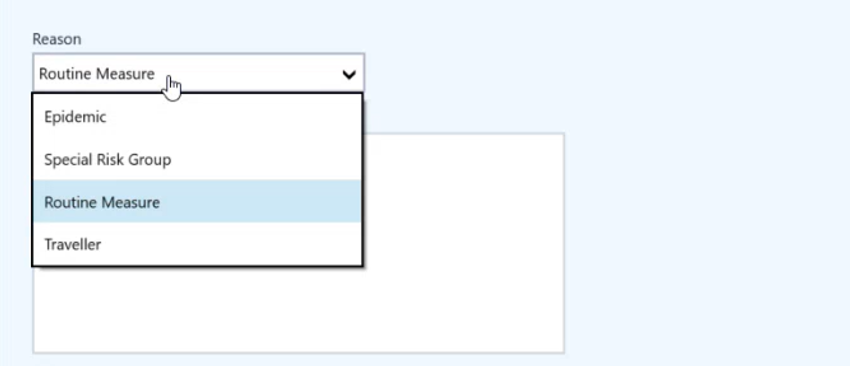
Traveller/Special Risk Groups details shown:
-
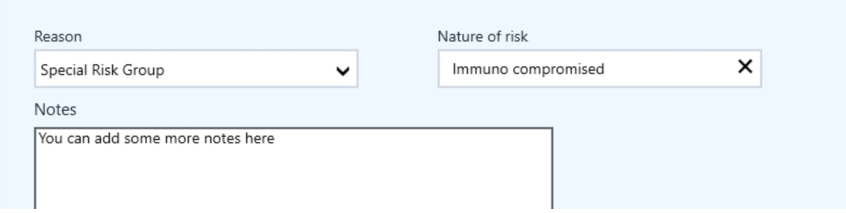
Nature of Risk displayed for Special Risk Groups:
-
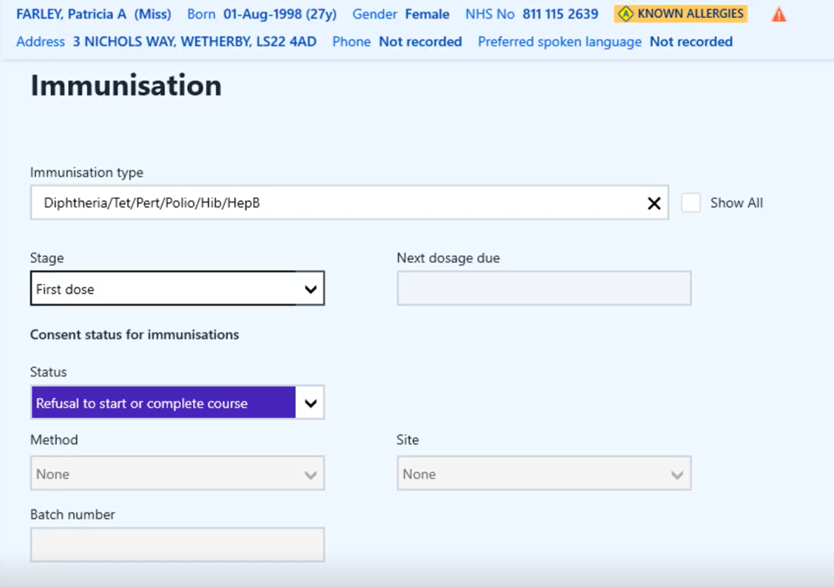
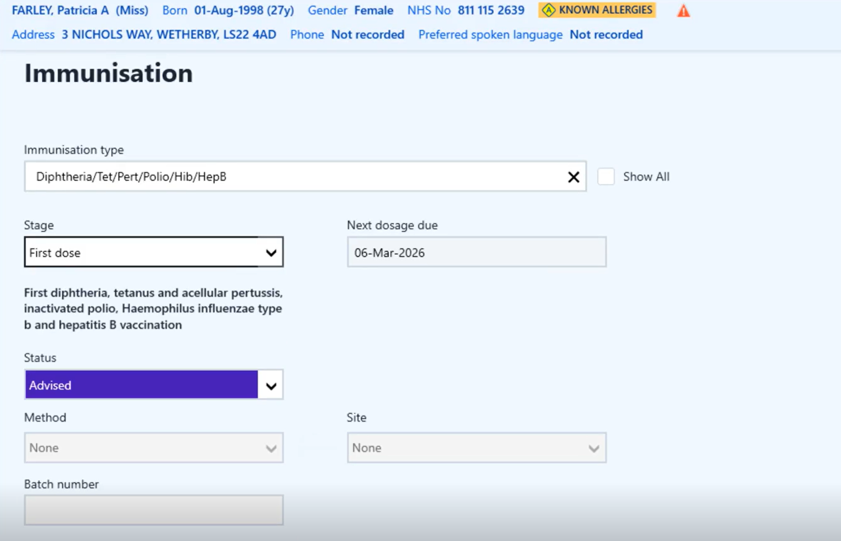
Method, Site and Batch number disabled when status is Refusal or Advised (and values cleared for Advised):
-
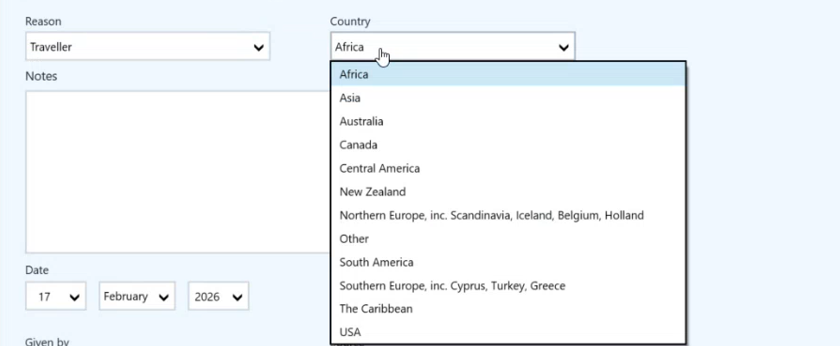
Country field displayed when Traveller is selected:
-
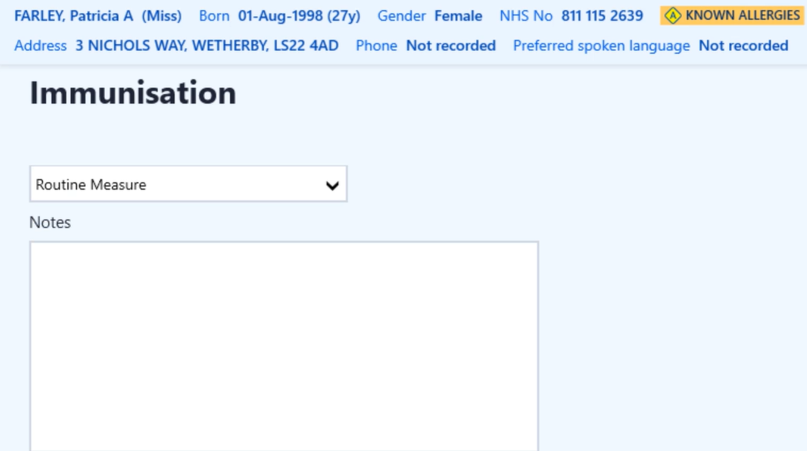
Reason defaults to Routine Measure:
Blood Pressure Laterality
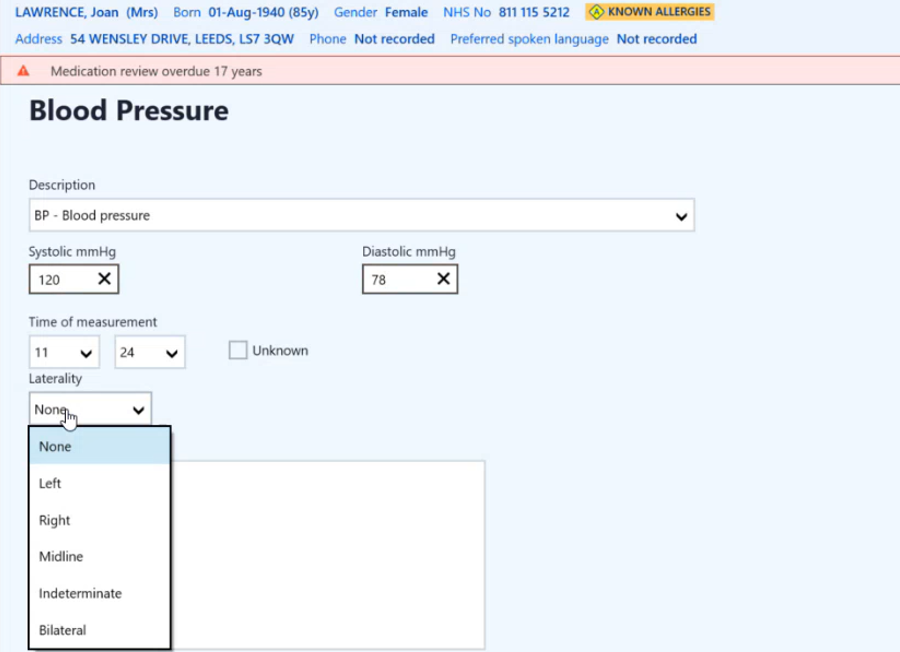
Laterality can be recorded for BP readings with options None, Left, Right, Midline, Indeterminate, Bilateral. The default is None.
This works in practices and federations and displays in the current encounter.
RBAC Prescribing – Acute Items
Access to acute prescribing is controlled by RBAC code 132.
This can now be restricted for federated users by editing the business activities in V360 -Organisation Services: Setting Up and Maintaining Business Activities
or in V3 - Security for practice users: List of Vision Functions and default access
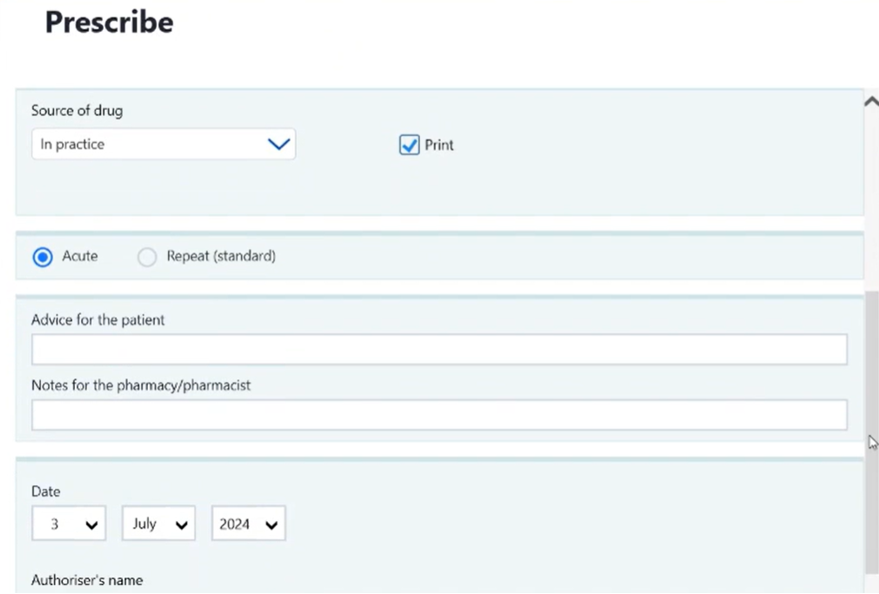
Users without this permission will not see the acute option, and the also create an acutecheckbox is hidden when creating repeat medication.
A toggle is available to disable restrictions if required.
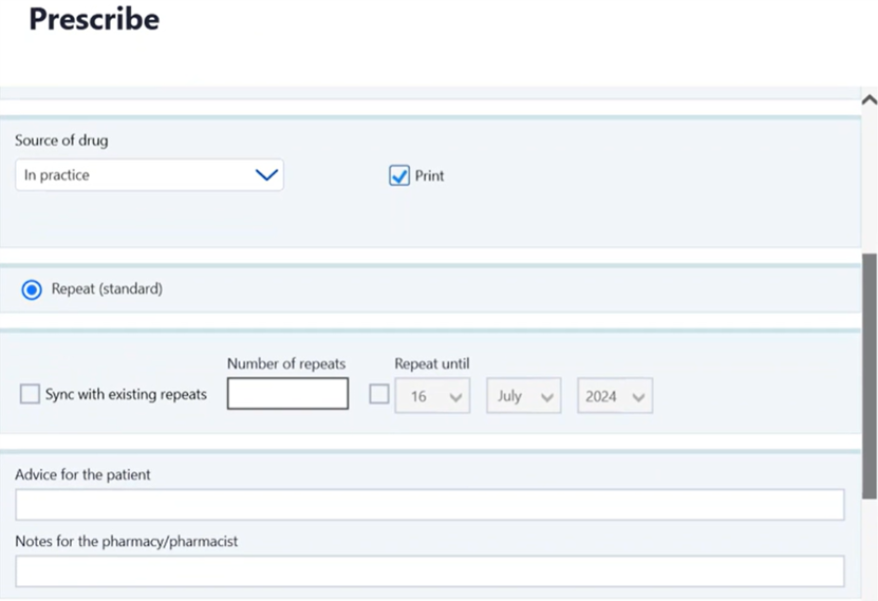
When creating repeats, the Also create an acute check box is hidden if user lacks acute permissions.
RBAC Prescribing – Repeat Items
Repeat prescribing is controlled by RBAC code 133.
This can now be restricted for federated users by editing the business activities in V360 -Organisation Services: Setting Up and Maintaining Business Activities
or in V3 - Security for practice users: List of Vision Functions and default access
Without this permission, users cannot see repeat or batch repeat options.
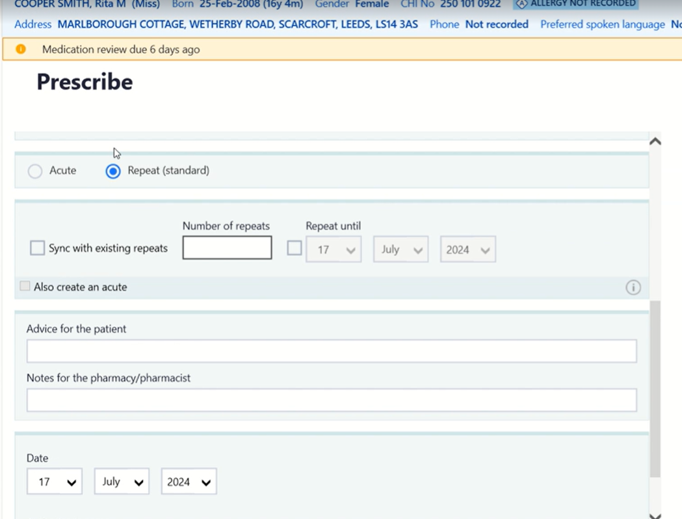
If a user has repeat permission only, repeat is automatically selected. A toggle is available to disable restrictions.
Prescribe Form Enhancements.
A number of updates have been included to Vision Anywhere 4.10.8 to improve prescribing safety and clarity, including:
Automatically recalculating the Days’ supply and Quantity Values on the Prescribe form.
-
From the Prescribe Screen with a selected medication, click the Dosage and frequency entry field. You can make changes to values in the field which result in the following actions:
-
Editing the frequency will recalculate the Days’ Supply.
-
Editing the dosage will recalculate the Quantity
-
Select the frequency and type in a new value:
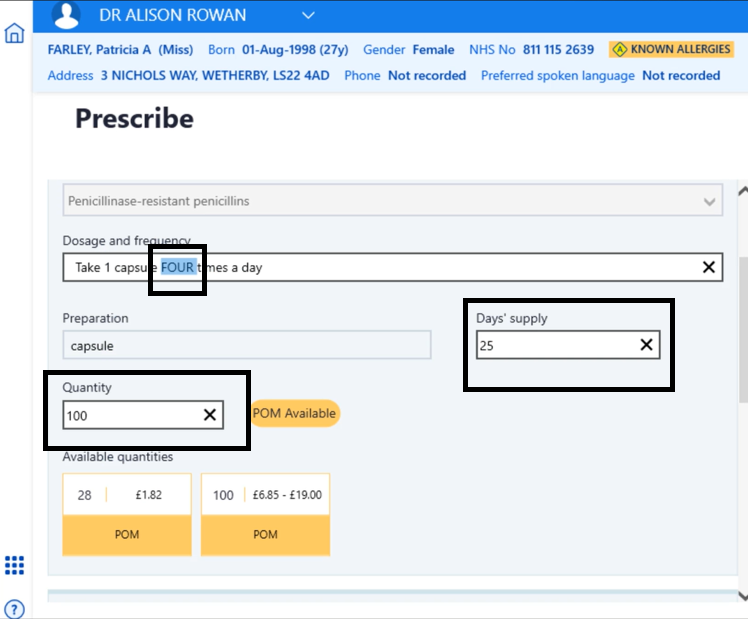
-
As you change the frequency value, the Day's Supply immediately updates
-
As you change the Dosage the Quantity immediately updates.
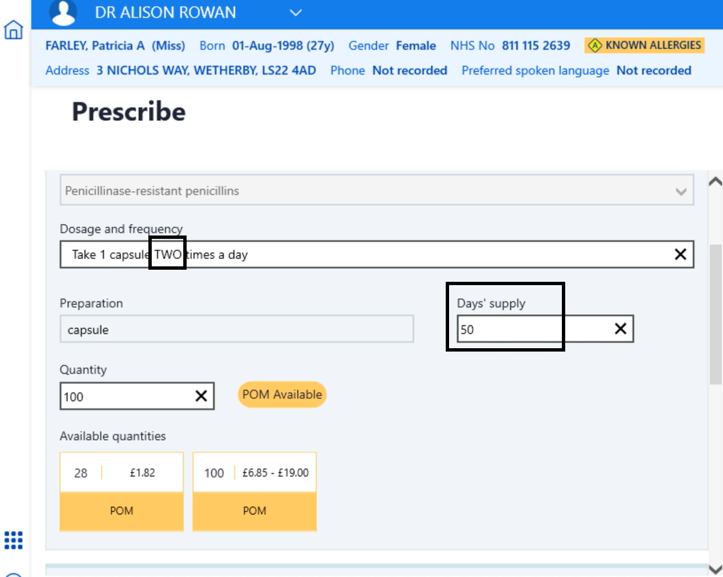
Note: Both the dosage and frequency can be changed simultaneously.
Other Enhancements include:
-
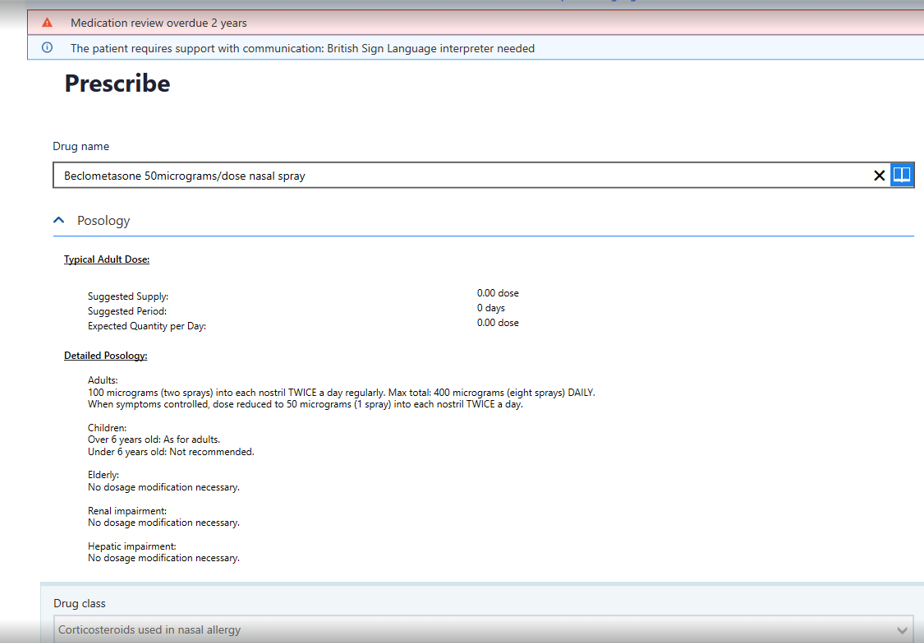
Indications and dosage visibility.
-
When users select a drug on the Prescribe Form, the Posology is now displayed:
-
-
Scottish Drug Tariff status
-
Users can see Scottish prices applied to the selected drugs in the Prescribe form and Drug Dictionary for Scotland region.
-
-
Legal status information
-
Legal status information now displays detailed information and associated warning messages for any selected drug.
-
-
Highlighting invalid DM+D items
-
Invalid drugs are no longer listed within the Drug drop down on the Prescribe form.
-
-
VMP drugs (generic) availability warnings
-
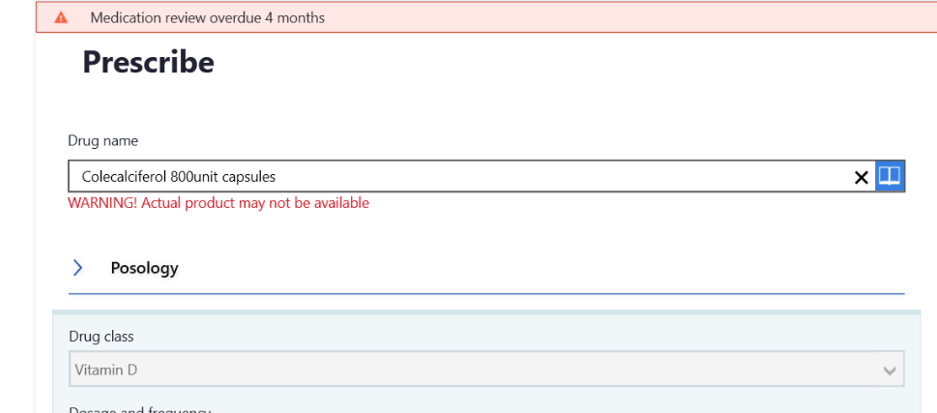
When a use selects a generic product whose DM+D availability restrictions are not available in the Drug table of the Vision Anywheredrug database a warning message WARNING! Actual Product is not Available displays on the Prescribe Form
-
Other Enhancements include:
-
AMP restriction warnings
-
When searching for an AMP product (Branded) that is marked unavailable in the Vision Anywhere drug database, the products are no longer listed
-
-
Sorting products by preparation strength
-
When searching for a drug in the Drug name drop-down, users can now see drugs listed based on their Form and Strength.
-
-
Defaulting to the POM version
-
Users are now warned when they inadvertently select a P/GSL product where a POM version exists and highlight the pack Quantity that contains a POM. A user can then select the quantity having POM available for the drug.
-
-
Unlicensed medicine warnings
-
When a user now selects an unlicensed drug on the Prescribe form a new icon appears representing unlicensed drugs and a warning message appears stating Warning! This is an Unlicensed drug. Users can then search for an equivalent licensed drug.
-
-
Display of prescribable items
-
General – General Improvements to user messages when prescribing.
-
Previous Releases
 Vision Anywhere for Windows Desktop Release 4.10.4
Summary of Changes
Vision Anywhere release 4.10.4 contains the following new features and improvements:
Encounter types - There are three new Encounter types for you to use as required when recording consultations:
eConsultation
Out of Hours, non-practice
Walk in Centre
Scotland
SCI Gateway - SCI Gateway now integrates with the SCI Gateway Scottish National System.
To access SCI Gateway, from Vision Anywhere, select EXTERNAL SERVICES - SCI Gateway from the .
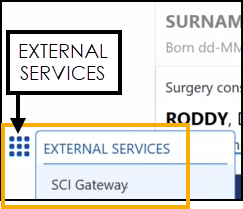
Providing you have used SCI Gateway before, you are logged in automatically and the Welcome to SCI Gateway screen displays.
See SCI Gateway - Scotland for details.
Vision Anywhere for Windows Desktop Release 4.10.1Summary of Changes
Vision Anywhere release 4.10.1 contains the following new features and improvements:
All Countries
The Vision Anywhere icon on your desktop is updated to:

CE Certification Mark - Vision Anywhere now displays the CE Certification Mark on both the Select an Appointment Book screen and the Settings side panel. The CE Certification Mark signifies a product sold in the European Economic Area (EEA) has been assessed to meet high safety, health, and environmental protection requirements:
 See https://www.gov.uk/guidance/ce-marking for further details if required.
- The Knowledge Base is now available from your :
The Knowledge Base is a source of information including:
Latest news
Hint and Tips
Frequently asked questions
Help articles
User guides
A smart search facility
Training Tip - To access the version appropriate Vision Anywhere Help Centre, right click on the Vision Anywhere bottom toolbar and select Help .
.
Prescription Manager - We have introduced several enhancements for Prescription Manager.
See Prescription Manager Enhancements for details.Drug Allergy Form - When you are recording a drug allergy, the drug is now checked against the National Patient Safety Agency (NPSA) list and if a similar medication is selected the High-risk drug warning displays:
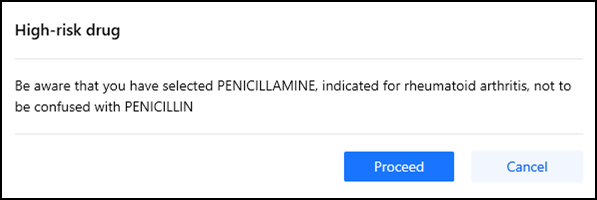
Select Proceed to continue or Cancel to update the medication selected.
eMED3 - To support the change in legislation from July 1st 2022, creating an eMED3 (Statement of Fitness for Work) is updated.
Members of staff set up with the following Staff Roles in Vision 3 - Control Panel - File Maintenance - Staff can now issue an eMED3 (Statement of Fitness for Work) from Vision Anywhere:
Description Profession on the eMED3 Practice Nurse Nurse Community Nurse Nurse Community Psychiatric Nurse Nurse Hospital Nurse Nurse School Nurse Nurse Contact Tracing Nurse Nurse Mental Handicap Nurse Nurse Nurse Access Role Nurse Nurse Manager Access Role Nurse Nurse Prescriber Nurse Nurse Practitioner Nurse Nurse Practitioner Advanced Nurse Physiotherapist Physiotherapist Occupational Therapist Occupational Therapist Pharmacist Pharmacist Clinician - The name and profession of the issuing clinician now displays and prints on a MED3 certificate.
Follow on MED3 - When you add a Follow on MED3, Clinician now defaults to the clinician currently logged on.
Copy and Paste NHS/CHI Numbers - You can now copy a patient's NHS (England and Wales) or CHI (Scotland) Number. From any screen with a Patient Banner, move your mouse pointer to the number required and a Copy NHS/CHI number to clipboard message displays:

Select the NHS/CHI number to copy and NHS/CHI Number copied to clipboard displays:

You can now paste this outside of Vision Anywhere in the usual way, for example, Ctrl + V, or right click and Paste where required.
Note - Where an NHS/CHI Number is not recorded, there is no option to copy to clipboard.To prevent copy and paste errors, when you select a new patient the copied number automatically deletes.
Copy and Paste Device Id - You can now copy your Device Id, this can be useful when you are contacting the Service Desk with regard to any issues you are experiencing. To copy your Device Id:
- From Vision Anywhere, select the arrow next to your name.
- Select Settings and the Settings list displays:
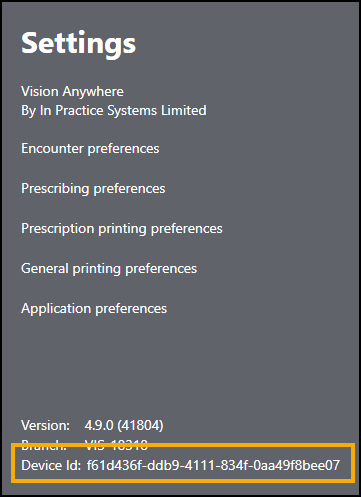
- Highlight the Device Id and press Ctrl +C keys on your keyboard.
You can now paste this outside of Vision Anywhere in the usual way, for example, Ctrl + V, or right click Paste where required.
Enhanced Write Back (for practice users only) - The first phase of the planned write back improvement is delivered as part of this release. This introduces:
Editing the Last Encounter - Practice users now have the ability to re-open and update the data recorded in the Last Encounter providing you are online and using the same device.
See Editing an Encounter for details.'Record out of Date Banner' - If there is an issue with retrieving the data from Vision 3, the 'Your view of this record is out of date, some items may not be visible' banner displays:

Select Refresh to update the record you are viewing. If the refresh:
Is successful - The 'Successfully updated this patient's records' message displays, or
Fails - The 'Failed to refresh this patient's records' message displays.
Note - Vision 3 entries take precedence over Vision Anywhere entries.
Unable to update encounter entries - If you try to update an entry at the same time as someone in Vision 3 updates the same entry, the Unable to commit changes to encounter screen displays with the details of what you are trying to update. Select Refresh, to cancel your update and reopen the latest version of the entry:
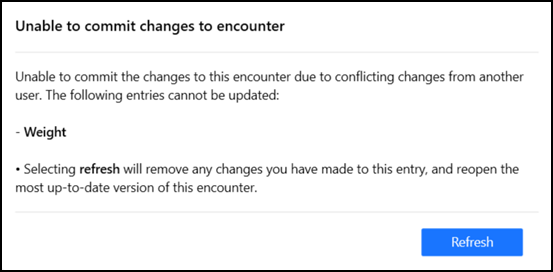
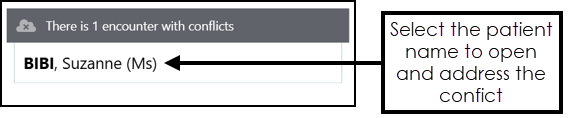
Conflicted encounters not uploaded - If there are Encounters that do not upload due to conflicting issues, for example, trying to edit the same data entry as a member of staff in Vision 3 and exiting without selecting Refresh on the Unable to commit changes to encounter screen, the 'There is n encounter with conflicts' message displays:
Time - The time of an entry no longer displays alongside the date on any screen except the Blood Pressure screen. The Blood Pressure screen completes with the time from the device you are using, update as required, or tick Unknown to record the time of the reading is not known.
Reprinting Prescriptions - The issue with reprinting a prescription within the Encounter it was created in, has been addressed.
Pregnancy related Prescribing Warnings not displaying - The issue of pregnancy related prescriber warnings not displaying when a pregnancy is recorded in Vision Anywhere using SNOMED term ‘Pregnant’ (concept ID 77386006) has been addressed.
Scoring Test Results - Test Qualifiers are no longer available for scoring test results.
Uninstalling Vision Anywhere - The issue of someone uninstalling their instance of Vision Anywhere from their Windows profile, affecting other Vision Anywhere users on the same machine, has been addressed.
Shared Care Setting Only
Warnings in a Shared Care setting with Exclusions in place:
When you select a patient whose practice is part of a shared care setting with exclusions in place, a 'Your view of this record is limited, some items will not be visible' patient warning banner displays to make you aware you may not be viewing a complete record:

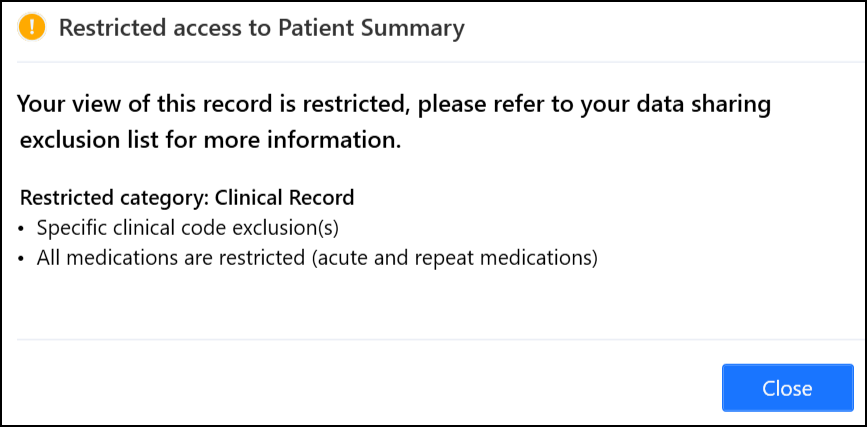
Select LEARN MORE to see the detail of this restriction, for example:
A warning also displays if any decision support is restricted due to a restricted sharing agreement:

Select LEARN MORE to display the full details, for example:
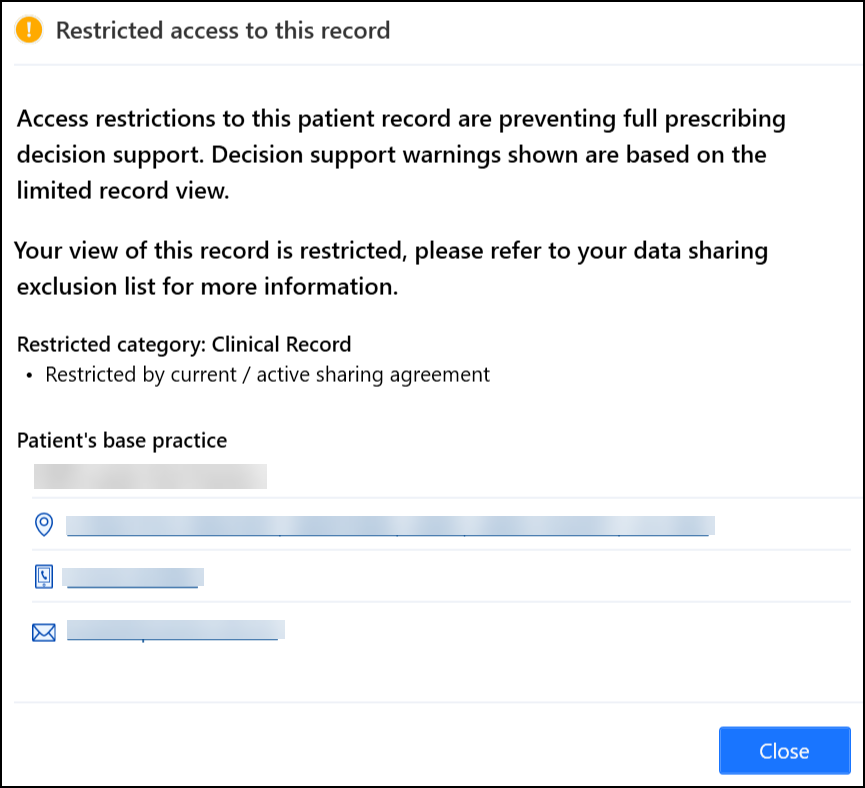
Select Close to close.
Vision Anywhere for Windows Desktop Release 4.7Vision Anywhere release 4.7 contains the following new features and improvements:
All Countries
Encounter Type:
Medication Management Event - To support Medication Reviews, we have introduced a new Encounter Type of Medication Management Event.
Note - Only available once the relevant SNOMED CT subset is released.Non-consultation medication data - To support the expansion of repeat medication management, we have introduced a new Encounter Type of Non-consultation medication data. This cannot be selected manually, it is automatically allocated to the reauthorisation of and the issuing from existing Repeat Masters.
Time - The time of an entry no longer displays alongside the date on any screen except the Blood Pressure screen. The Blood Pressure screen completes with the time from the device you are using, update as required, or tick Unknown to record the time of the reading is not known.
Sodium Valproate Warning - The Sodium Valproate Warning now only displays on patients who are female and aged 12 - 55.
Wales Only
Welsh GP Portal (WGPP) - NHS Wales has consolidated many of its services into a single portal for ease of access and use. To facilitate this you can now access the Welsh GP Portal (WGPP) from within Vision Anywhere quickly and seamlessly. The first service to use this feature is test requesting.
See Welsh GP Portal (WGPP) for details.