
|
|
|
|
|


Using Referral Message Digest
- Start an e-Referral in the usual way from Consultation Manager – Add Referral, tick Online Booking, enter the Urgency and then select the eBooking button.
- On saving the Referral - Add form in Consultation Manager, the Referral Message Digest (RMD) automatically appears as a tab in the consultation pane. If the consultation pane is not usually visible on your Patient Record view, then it is made visible. You can resize the vertical and horizontal boundaries of the RMD.
- The RMD screen consists of four areas:
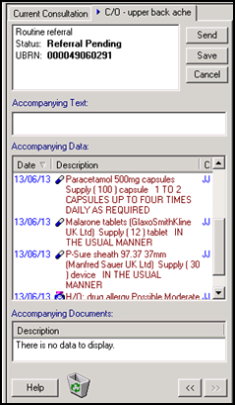
- Status/Control Area - Shows the status of the referral.
- Accompanying (free) Text - Allows you to optionally add free text to the referral message.
- Accompanying Data - Displays patient data populated by Auto Selection Options which you can manually add or remove.
- Accompanying Documents, Letters and Attachments - Displays any additional attachments which to be sent with the referral. You can manually edit these.
- When you are happy with the content of the referral, press Send to send the referral or Save to save it for editing later.
- You can track the transmission of an e-Referral in Mail Manager as usual.

