
|
|
|
|
|


Filing the Record
GP2GP Record Transfers have to be filed manually, even if you have automatic filing switched on.
To file a Record Transfer:
- From Mail Manager - Incoming Mail, simply right click on the message and select File All.
- A Vision Filing progress bar is displayed:
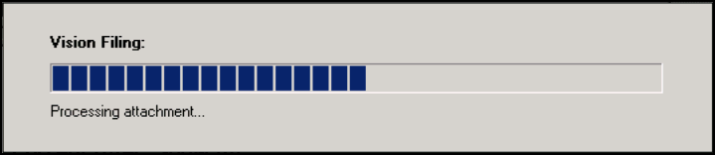
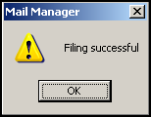
- Filing may take a while but once it has finished, a Filing successful, message is displayed.
- The incoming message status is updated to
 Filed.
The record is now ready for review in Consultation Manager  .
.
Finally, to complete the sequence of messages:
- Outgoing GP2GP Response - Sent (no action needed), ie the response has been sent stating that the patient's notes have been successfully integrated into your Vision system.
- Once the notes have been sent from the previous practice, the new (requesting) practice can see, in Outgoing Mail, a status of Complete on the GP2GP Request message (ie, the request has been completed). Look at the Audit tab to see the sequence of events, ending with "Received Acknowledgement - Record Received."
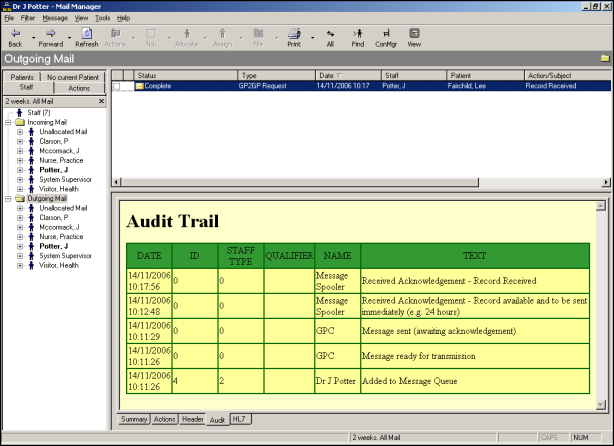
 Note - At any one time, you may have several messages that are Acknowledged and some that are Complete. If you want to chase up the Acknowledged ones, re-sort the Status column by selecting the column header, which group them together. Any action has to be "manual" by contacting the previous practice (see Summary tab for details of the previous practice)
Once a message is Complete, a Read coded record displays on the Message tab, and on the Journal in the patient record in Consultation Manager: "Patient registration by transfer of GP2GP electronic record".
Note - A summary of all the Mail Manager messages is shown in sequence in Summary of Mail Manager Messages - New patient registering.

