SCR Consent Migration Report
The Summary Care Record (SCR) Consent Migration Report enables you to search for errors that occurred during the Consent Migration processing.
To run the Consent Migration report:
- From the Vision 3 front screen, select SCR - Other Reports
 .
. - The SCR Reporter screen displays, select Consent Migration:
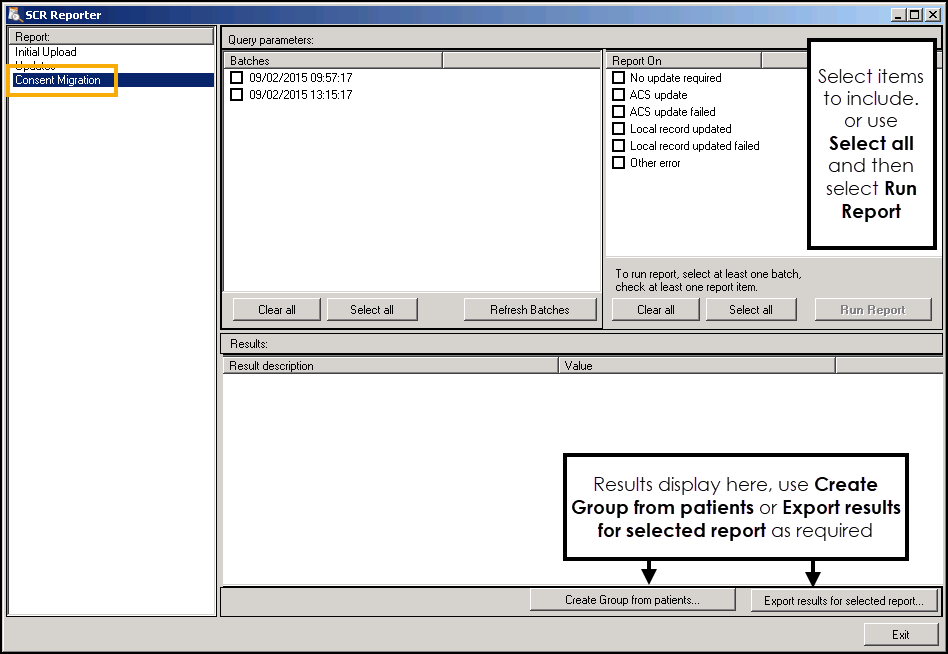
- Select one or more of the listed batches, select Refresh Batches
 if the required batch isn't listed.
 - Select one or more of the listed Report On options, for example, Messages not created. Choose Select all
 to include all batches, if required select Clear all
  to remove selections.
 - Select Run Report
 and the results display below.
 - The report results can be saved in the following way:
- Create a group of patients - Select Create Group from patients
 to create a group of patients to be worked on, seeCreating a Patient Group from SCR Reporter for details.
 - Export results for the selected report - Select Export results for selected report
 to create a .csv file that can be used in Microsoft Excel, see Exporting SCR Reports as CSV Files for details.
- Create a group of patients - Select Create Group from patients
- Select Exit to close.
Note - To print this topic select Print  in the top right corner and follow the on-screen prompts.
in the top right corner and follow the on-screen prompts.
