Preferences
System wide and user settings are configured in Preferences.
 , and user specific settings are indicated by a person
  .
.To access Preferences:
-
From Appointments, select the arrow next to your name and select Preferences.

You can now select your preferences from the following categories:
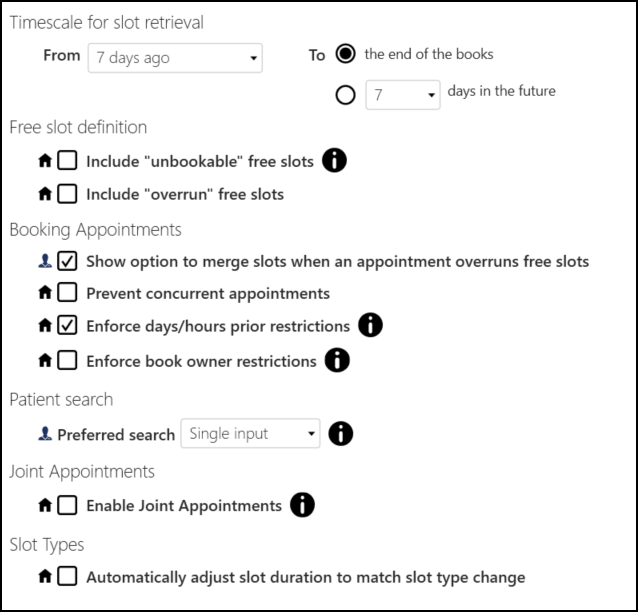
General
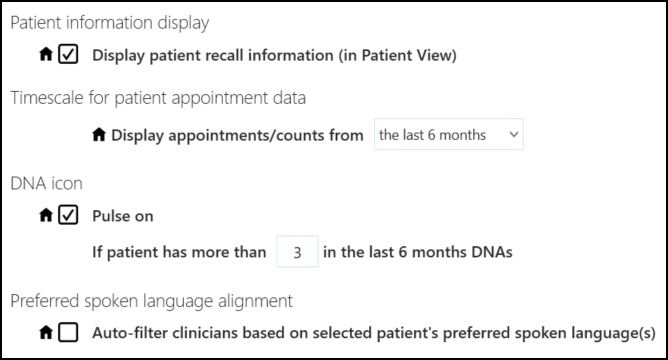
Patient data
Filter

Label Printing

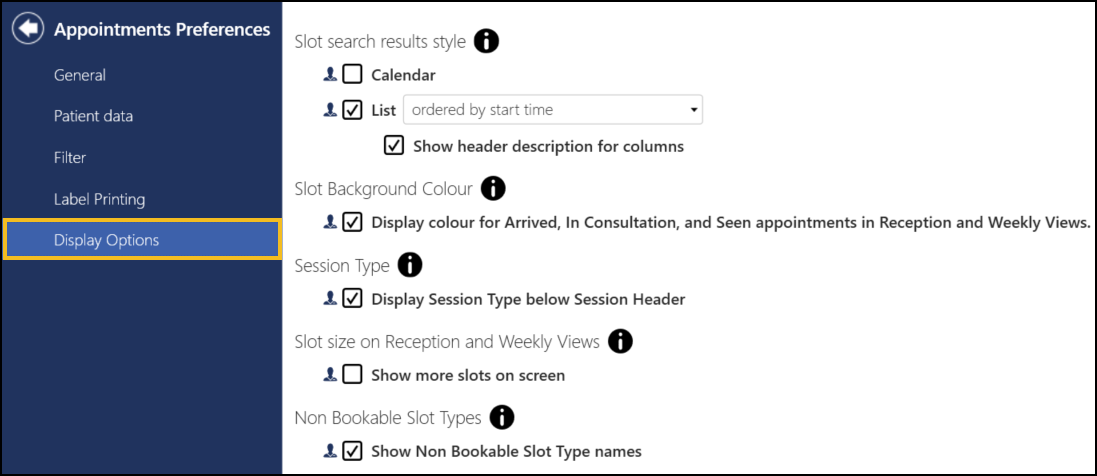
Display Options
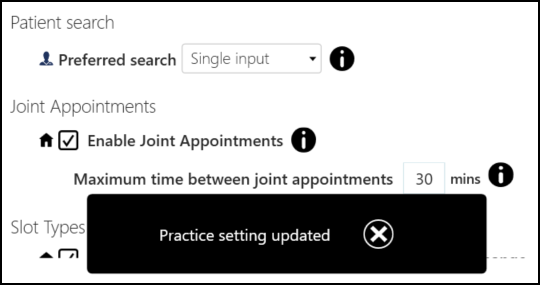
Any changes made to your preferences are saved automatically. A message displays at the bottom of the screen when you change a setting, advising 'Practice/User setting updated'. The message disappears automatically after five seconds.
 in the top right corner and follow the on-screen prompts.