Recording Medication
Adding Acute and Repeat Medication (0.58)
To record medication:
-
To record a new medication, you can either:
- From a Current Encounter with an encounter type selected, in Type here to create an entry enter the details of the medication required. A combination of drug name, strength and form can be used to refine your search, for example, ibup 400 tab to find Ibuprofen 400mg tablets.
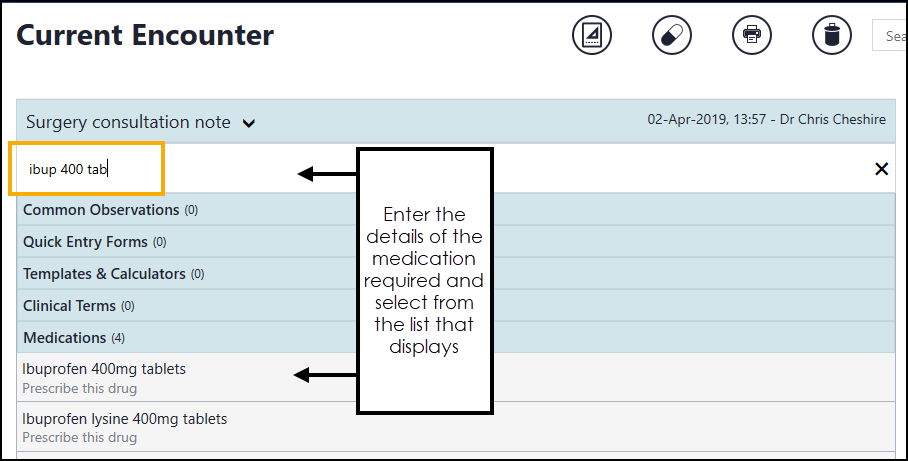 Training Tip - Depending on the item you are searching for, you may have to scroll down the list offered.
or
- From Current Encounter, select Add Medication
 and the Prescribe screen displays. Enter the details of the medication required, a combination of drug name, strength and form can be used to refine your search, for example, ibup 400 tab to find Ibuprofen 400mg tablets.
 The following symbols next to the drug indicate:
 ACBS item
 Black Triangle item
 Brand/Generic Branded
 Controlled drug
 Discontinued drug
 High Risk drug - If you select an item with a toxicity warning, the High Risk drug indicator displays, see Toxicity Drug Warnings for details.Note - You must enter a minimum of three characters to trigger the list.
- From a Current Encounter with an encounter type selected, in Type here to create an entry enter the details of the medication required. A combination of drug name, strength and form can be used to refine your search, for example, ibup 400 tab to find Ibuprofen 400mg tablets.
- Select the medication required from the list and the Prescribe screen displays.
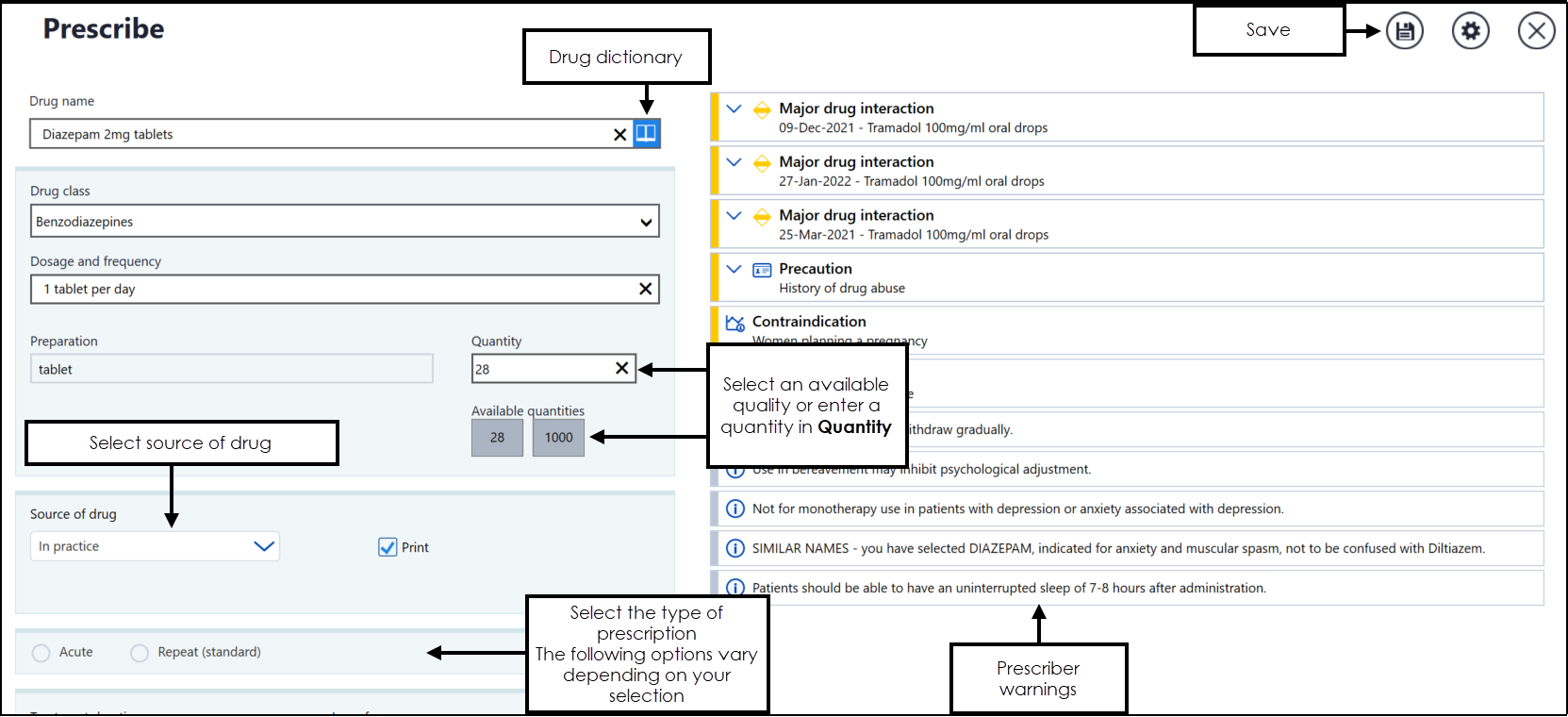
Complete as required:
- Drug name - Completes from your selection in Step 1, update as required. Use the Drug Dictionary
 if required, see Drug Dictionary for details.
 - Drug class - Automatically completes based on the item selected in Drug name, update from the available list if appropriate.
- Dosage and frequency - Auto-completes if there are Gemscript drug dictionary defaults, update or enter as appropriate.
- Preparation - Completes automatically based on the item selected.
- Quantity - Select from Available quantities or enter directly into Quantity.
Note - When adding a prescription for a Controlled Drug item, a warning displays in orange if you enter more than a 30 day supply into Quantity. This utilises the calculated daily dose set in Dosage and frequency.
- Source of drug - Defaults to In practice, select from the available list to update if required.
Print - Selected by default, remove the tick to record a handwritten prescription.
Note - Print is not available if In practice is not selected as the Source of drug.- Type of prescription, select from:
- Acute - Select to create a one-off medication.
- Repeat prescription - Select if you would like the item to be added as a repeat. The following options display:
- Sync with existing repeats - Optional, tick to link the medication issue frequency and Repeat until date to an existing schedule, see Synchronising Repeats for details.
- Number of repeats - Enter the number of repeats required.
- Repeat Until - Optional, select a date to repeat this medication until.
- Also create an acute - Optional, tick to create an additional acute prescription for this medication.
- Advice for the patient - Enter any advice for your patient, this prints on the right-hand side of the prescription and is copied to an acute item if created.
- Notes for the pharmacy/pharmacist - Enter any notes for the pharmacist, this prints on the left-hand side of the prescription and is copied to an acute item if created.
- Authoriser's name - Defaults to:
- The clinician signed in, or
- The Usual GP if a non-clinician is signed in, select to update if required.
- In a Shared Care Setting it defaults to the clinician logged on but always write back as 'Dr Federated User', with the actual user’s name in Notes.
- Drug name - Completes from your selection in Step 1, update as required. Use the Drug Dictionary
- Decision Support and Prescriber Warnings display on the right of the screen and should be checked, select the warning to view the details:
 - Drug Doubling
 - Severe Drug Interaction
 - Major Drug Interaction
 - Minor Drug Interaction
 - Contraindication - Triggered by a patient condition
 - Precautions - Triggered by a patient condition
Important - Please be aware, Vision Anywhere only displays Medication from the last 2 year excluding those with no date assigned to them.Entries with no symbols are generic warnings.
You must be a Vision 3 practice and have an internet connection for prescriber warnings to display. If you do not have an internet connection, a message displays below the Drug name advising 'WARNING! Decision support is not available'.

Prescriber warnings depend on your Prescribing Preferences settings, see Prescribing Preferences for details.
Note - If you are an existing Vision 3 user, your prescriber preferences do not automatically import and need to be configured in settings. - Select Save
 to add the item to the patient record.
 - If appropriate the Decision Support Summary screen displays.
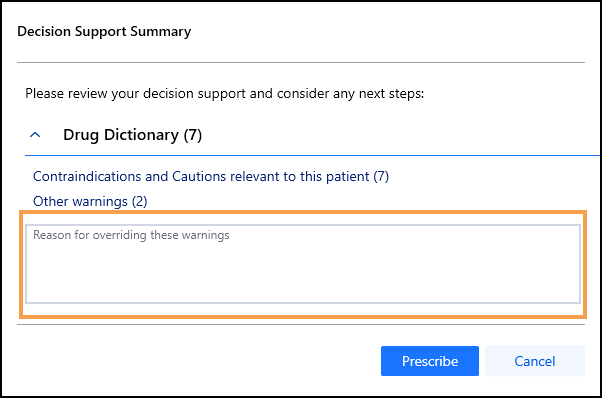 Note - There is no time frame for decision support, all medical history is included.
Enter any comments required in the Reason for overriding these warnings section.
- Select Prescribe
 .
.
The item(s) are now part of your current encounter, select Print  on the Current Encounter screen to issue and print the prescription. See Printing Prescriptions for details.
 in the top right corner and follow the on-screen prompts.