What’s New in Electronic Prescription Services (EPS)?
DLM 520 February 2017
The following changes are being made to the Electronic Prescription Service (EPS) as part of Vision 3 Release DLM 520:
- Controlled Drugs - Various changes have been made to the handling of controlled drugs within EPS:
- Schedule 2 and 3 via EPS - Once authorised by NHS Digital, Schedule 2 and 3 controlled drugs for EPS is automatically enabled by Vision 3.
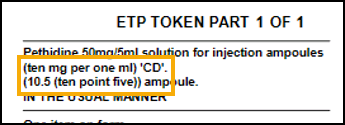
- Schedule 2 and 3 controlled drugs Quantity - The quantity entered for schedule 2 and 3 controlled drugs automatically prints in both numbers and words preceded by 'CD':
- Schedule 4 and 5 Repeat Dispensing - It is now possible to issue schedule 4 and 5 controlled drugs via Repeat Dispensing, simply tick Batch when adding the therapy.
- Schedule 2, 3, 4 and 5 controlled drugs on one prescription - Schedule 2, 3, 4 and 5 controlled drugs now all print on the same prescription, they are no longer split.
-
Printing - You can now print all Tokens, you might find it useful to review your printer setup:
- Once you select either Print
 or press F9 on your keyboard , select Setup
  and the Prescription Options screen displays.
 - Select Print Profile and simply select from the Printer Profile list.
- Once you select either Print
 DLM 470 June 2014
- Search for Prescription by Unique Identifier - There is a new option to search for the Prescription ID on the All Prescriptions view, see Searching for a Prescription by Unique Identifier for details.
- Date of Printing and Nomination Details on RHS - The date of printing and dispensing contractor nomination details are now included on the right hand side of the EPS prescription, see EPS Prescription Tokens.
DLM 460 June 2014
- Bulk Signing Window- A fix has been made to the Bulk Signing window to ensure that when an item is cancelled from an EPS prescription, the details are viewable on the rejection tab. Also, Consultation Manager no longer crashes when selecting Print as FP10 from the bulk signing window, see Bulk Signing Electronic Prescriptions.
- Bug Fix - Electronic prescriptions with Nominated Appliance Contractors no longer disappear from the Prescription Manager screen, see Electronic Prescription Service (EPS) Nomination.
- Bug Fix - Individual items from a post dated EPS prescription can no longer be cancelled, see EPS Post Dated Prescriptions.
- Bug Fix - Reprocessing ETP messages in transmission error no longer results in the message being duplicated and rejected.
DLM 410 (08/08/12)
From DLM 410, the following changes have been made to the Preferred and Nominated Pharmacy functionality for EPS2 enabled sites:
- If a patient has a Nominated Pharmacy set up, when EPS2 is enabled the Preferred Pharmacy details are no longer used. The Nominated Pharmacy is used by default for all prescriptions issued to the patient.
- If the patient does not have a Nominated Pharmacy the Preferred Pharmacy details are used by default for all prescriptions issued to this patient. (EPS2 eligibility still applies, in that a patient will not be eligible for EPS2 prescriptions without a nomination prior to EPS2 phase 4.)
- If the Preferred Pharmacy differs from the Nominated Pharmacy an alert displays to enable you to notify the patient of the change to their dispensing pharmacy. Once informed the alert can be removed and the Preferred Pharmacy is subsequently changed to the same details as the Nominated Pharmacy to reflect this.
DLM 400/401 (28/06/2012)
-
Gemscript - The introduction of the new Gemscript dm+d Drug dictionary means that the Name Replace Utility does not need to be run prior to upgrading to EPS2 as this should already have been done as part of the DLM 400/401 upgrade when Gemscript was received.
DLM 390 (20.12.2011)
-
Clear Notes on Finalise - You can now clear EPS prescription notes when the prescription is signed in Consultation Manager, See Prescription Manager Functions for details.
DLM 350 (21.07.2011)
The following changes have been made to full EPS2 functionality:
- Controlled Drug Changes - All users can now see in the Options-Setup screen from the front screen of Vision, if schedule 2 & 3 and private prescribing are enabled for EPS 2.
- Cancellation changes
- You can now view rejected and cancel failed prescriptions in the bulk signing view - rejections tab.
- You can now access the cancellation reason, dispenser and dispenser telephone number from Prescription Manager.
- Bulk Signing changes
- F9 to Sign - You can now press F9 on your keyboard to sign selected prescription(s) in the workflow list.
- Urgent Prescriptions - Prescriptions marked as urgent are now displayed at the top of the selected patient’s drug list in the bulk signing screen with the following urgent icon:
 .
. - Prescriptions displayed oldest first - The order of prescriptions in the patient drugs to sign in the bulk signing screen is now ordered oldest prescription first rather than alphabetical order.
- Edit Additional Instructions - You can now select Edit Additional Instructions from the bulk signing screen after a prescription has been sent to change information for the dispenser.
DLM 320 (23.09.10)
DLM 320 brings Electronic Prescription Service Release 2 (EPS R2). The roll out of EPS R2 is divided into 3 separate phases which are:
- EPS 2 - Phase 3 (Deployed Disabled) - is the default initial setting which behaves as per EPS Release 1 with changes to Prescription Manager and the introduction of Dispensing Contractor Nomination. This is automatically enabled in DLM 320 for practices using EPS Release 1. See "EPS Release 2 - Phase 3 (Deployed Disabled) - Previously EPS 1"
- Phase 3 - By default, prescription is electronic with token. The message is legal entity. Your PCT will work closely with your practice to assist you with the transition to EPS R2 Phase 3. You cannot be enabled for this functionality until you have been instructed by your PCT, who need ministerial approval, to go ahead. See "EPS Release 2 - Phase 3".
- Phase 4 - Phase 4 - By default, prescription is electronic only. The message is legal entity and you will be able to send prescriptions irrespective of nomination. Activation details for Phase 4 to be confirmed by NHS Digital.
Changes for Current EPS R1 Practices (now known as EPS 2 - Phase 3 (Deployed Disabled)):
For practices currently using EPS Release 1, from 320 onwards EPS R1 status is referred to as EPS 2 -Phase3 (Deployed Disabled). EPS R2 functionality is present in 320 but is switched off by default. However, you will notice the following changes in Consultation Manager:
- Nomination is a new process used for EPS R2 that gives patients the option to choose, or nominate, a dispensing contractor to which their acute, repeat and repeat dispensing prescriptions can be sent automatically. You can start recording nomination preferences from DLM 320.
- See "Nomination".
- Prescription Manager
- There are new Prescriber to Sign and Assign To options which replace the Authorised Signatory box.
- You can refresh the item list by pressing

-
 If the patient has no nominated pharmacy, then this will be disabled and unchecked. If the patient has a nominated pharmacy, then this will be checked.
 - There is an option to Add a free text Prescription Note
 . This displays as a reminder on the patient record. When using EPS phase 3, the notes option is useful for bulk signing.See Prescription Manager and EPS for details.
- Therapy List - You will see a new symbol
 in the drug select list. This is not in use until you receive the EPS 2 DM &D drug dictionary.
When you have received the EPS 2 DM &D drug dictionary,
 displays when a drug is eligible for EPS messaging and displays when a drug is not eligible.
16.08.06
-
Any new GP starting at the practice must immediately insert their SSO Smartcard so that their details can be picked up. If this is not done, ETP scripts cannot be produced, and an ordinary script without a bar code is printed instead.
09.06.06 - DLM 202
-
Doctor to Sign Prescriptionnow renamed Authorised Signatory on Prescription Manager screen. Every time a clinician is selected in the Authorised Signatory field in the Simple and Active tabs on Prescription Manager, the script types will be updated to suit the clinician's ETP status, ie change between Dual and Paper
27.03.06 - DLM 200
-
ETP activation - Advanced Printing does NOT need to be switched on before enabling ETP. Explanation of "Prescription Manager - Errors tab". Filtering of ETP messages in Mail Manager, see Prescription Manager and EPS for details.
26.01.06 - DLM 195
-
There is a new Errors tab in Prescription Manager which shows details of prescriptions that fail to load.
17.11.05
-
Introducing Electronic Prescription Service (EPS) - The Electronic Transmission of Prescriptions (ETP) programme creates and implements EPS and then integrates it with the National Care Records Service. The EPS operates throughout England. Text updated in line with Health and Social Care Information Centre website. Core ETP renamed ETP Release 1, Full ETP renamed ETP Release 2.
26.10.05
-
In ETP, the status of a receptionist issuing a repeat master can result in either Dual or Paper prescriptions. Various scenarios can happen with regards ETP-eligible and non-ETP eligible drugs. See Electronic Prescription Service (EPS) Adding Acute Medication.
25.04.05
-
Printing for ETP - Bar Codes and Quality - For the codes printed at the GP practice to be read successfully at the pharmacy, the printing must be of good quality.
11.04.05.
-
Electronic Transmission of Prescriptions (ETP) - Core ETP implemented with new Prescription Manager screen replacing Print Therapy screen.

