Adding a Supplementary Message
If you need to add additional details to a message that is already sent, you can add a Supplementary Message.
You can add a Supplementary Message to:
-
Referrals
-
Advice Requests
To add a Supplementary Message:
-
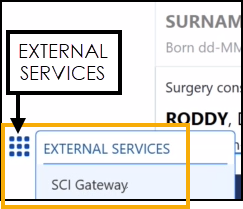
From the Vision Anywhere , without selecting a patient, select EXTERNAL SERVICES - SCI Gateway.
-
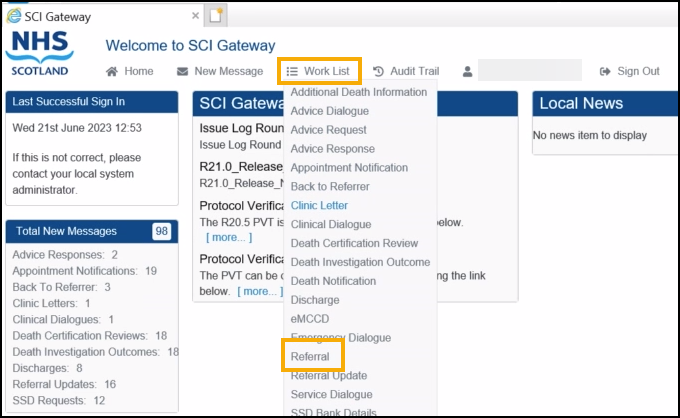
The Welcome to the SCI Gateway screen displays, select the type of message required, for example Referral.
-
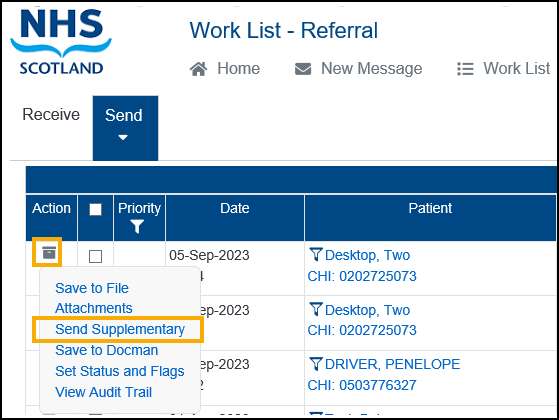
The relevant Work List screen displays, locate the message to update, select the Additional Menu and then Send Supplementary.
-
The New Supplementary screen displays, select Protocol - General Supplementary and then select Create.
-
The Supplementary screen displays in a separate browser screen, complete as required.
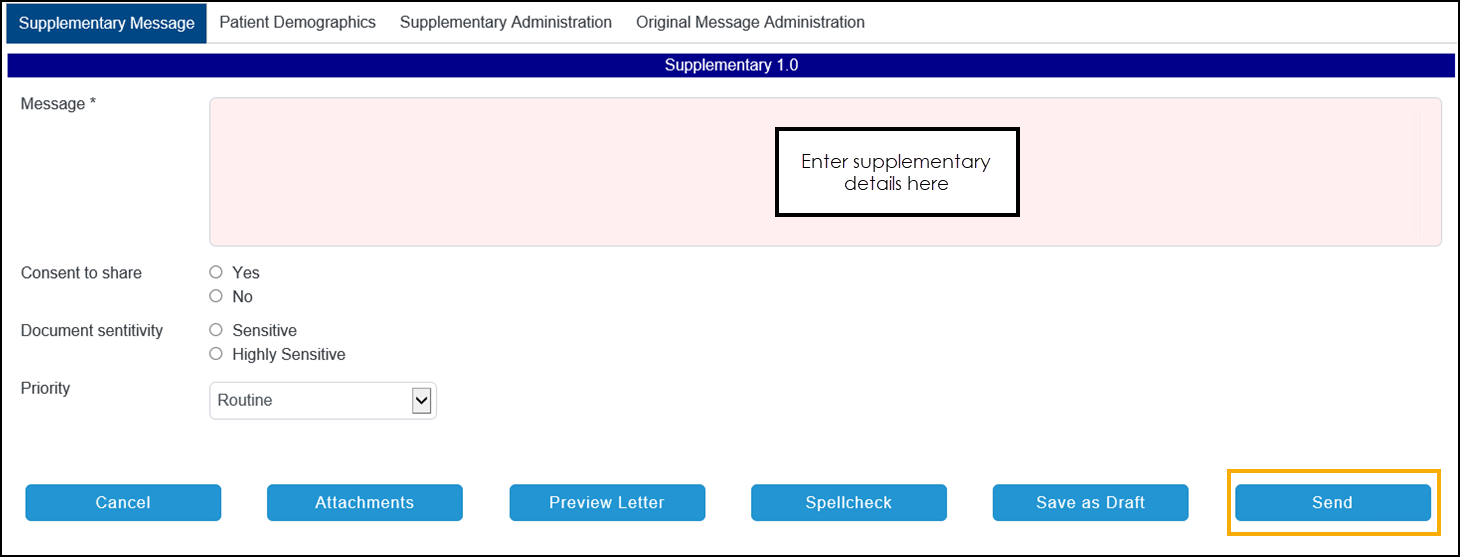 Training Tip - Mandatory areas display in pink on each tab. For more information, please access Help from within the SCI Gateway.
 -
Select Send.
-
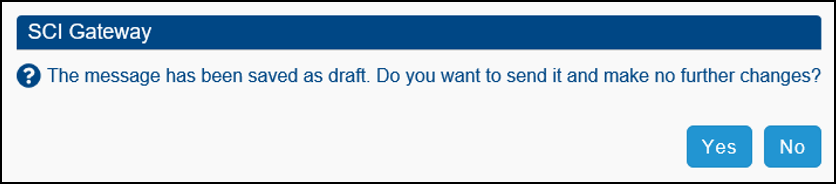
A ‘The message has been saved as draft. Do you want to send it and make no further changes?’ message displays, select Yes to confirm all details are correct. If in doubt, select No and check the referral.
The 'Saving 'message type' to an encounter, please wait' message displays. Once saved, the relevant Work List displays containing your updated message.
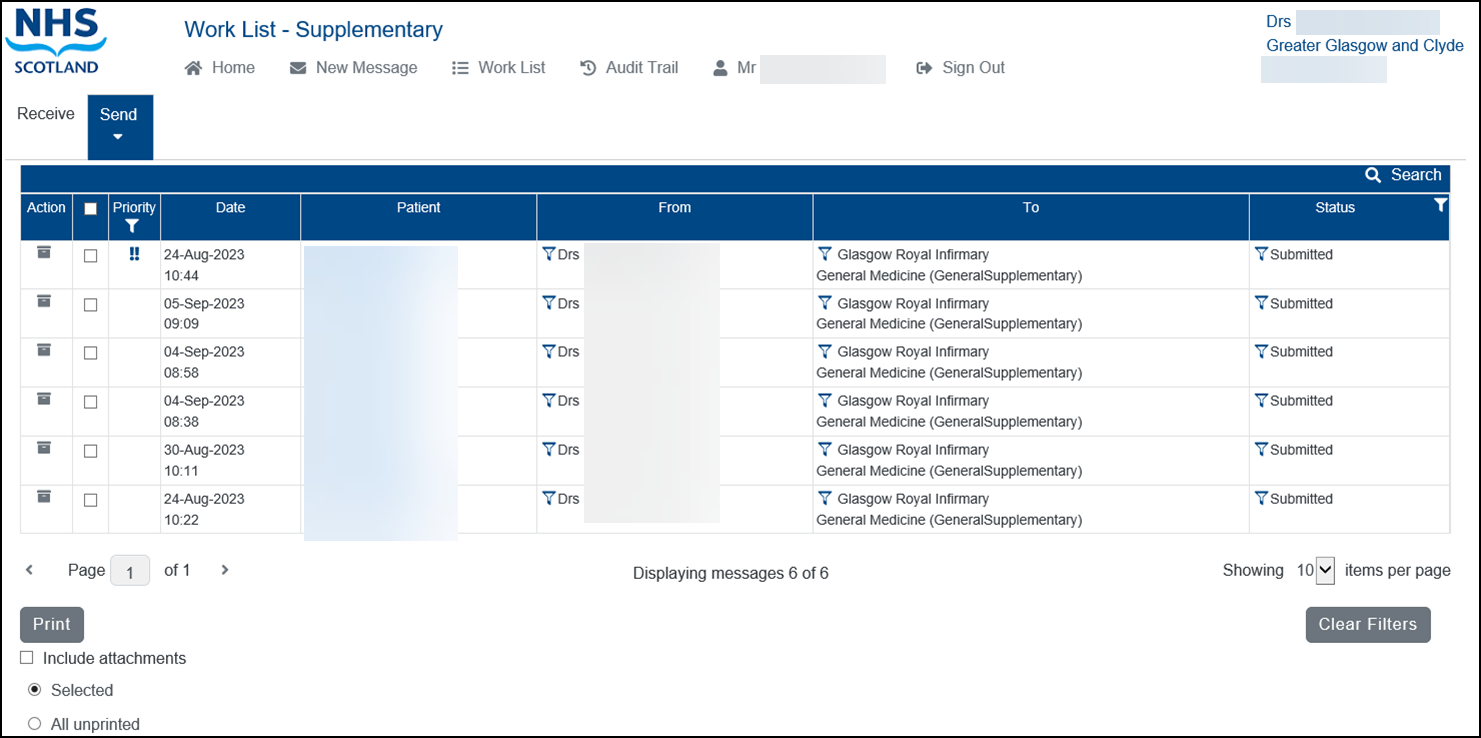 Training Tip - You can select any message from here to display the message screen within a separate browser screen.
 -
From the SCI Gateway Welcome screen, select Sign Out.

-
Finally, select the Back Arrow
 to return to the patient record.
To view the Supplementary Message added via SCI Gateway, select the patient in the usual way
-
Patient Summary in the Encounter section.
Training Tip - Select Encounter to view the All encounter screen. -
Patient Summary in the Recent Correspondence section.
Training Tip - Select Recent Correspondence to view the Correspondence screen.
 in the top right corner and follow the on-screen prompts.