Importing Messages
If a message exists within your SCI Gateway Work Lists that is not part of the patient record, you can import it into Vision Anywhere. You can import any of the following message types from SCI Gateway:
-
Advice Dialogues
-
Advice Dialogue Replies
-
Advice Requests
-
Advice Responses
-
Back to Referrer
-
Clinic Letters
-
Discharge Notification
-
Emergency Dialogue
-
Referrals
-
Referral Updates
-
Supplementary Messages
To import a message from SCI Gateway:
-
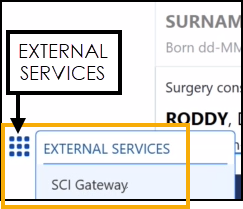
From the Vision Anywhere , without selecting a patient, select EXTERNAL SERVICES - SCI Gateway.
-
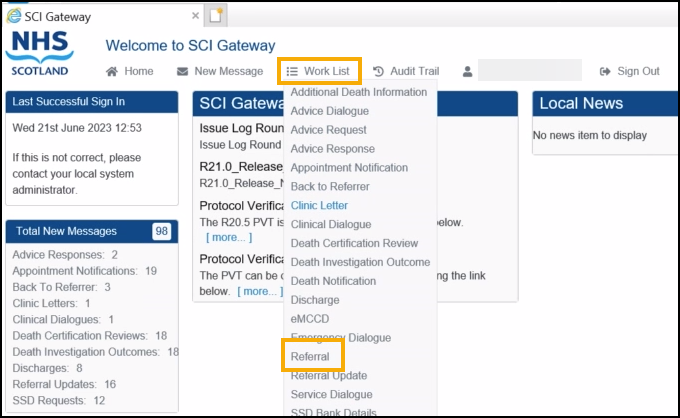
The Welcome to SCI Gateway screen displays with a summary of your messages and draft messages on the left hand side. From the available list, select Work List and then the type of message required, for example Referral.
-
The relevant Work List screen displays, select the message required from the list available.
-
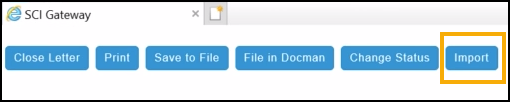
The SCI Gateway message opens, select Import to import the message into the patient's clinical record.
-
Minimise the SCI Gateway screen, use the Minus
 in the top right corner.
 -
If a patient is not identified from the message, the Continue import screen displays, if you want to continue, select Import and select the patient in the usual way
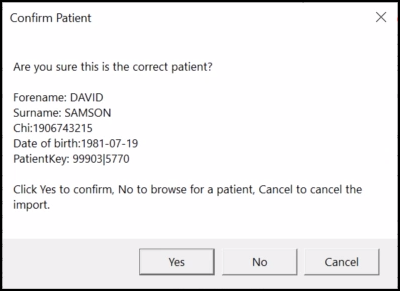
If a patient is identified, the Confirm Patient message displays with a patient match suggestion, select from:
-
Yes to accept the suggested patient.
-
No to browse for the correct patient in Vision Anywhere.
-
Cancel to cancel the import process.
-
-
The Import message screen displays, select Import to import the message.
-
Now, from your toolbar, select the SCI Gateway message screen and select Close (message type).
-
You return to the SCI Gateway Welcome screen, select Sign Out.

-
Finally, select the Back Arrow
 to return to the Vision Anywhere Home screen.
To view the item imported via SCI Gateway, select the patient in the usual way
-
Patient Summary in the Encounter section.
Training Tip - Select Encounter to view the All encounter screen. -
Patient Summary in the Recent Correspondence section.
Training Tip - Select Recent Correspondence to view the Correspondence screen.
 in the top right corner and follow the on-screen prompts.